Troubleshooting & Diagnostics
A structured guide to diagnosing a Stargate appliance from the command line: what to check, where the logs are, and safe recovery actions.
Where the scripts are
The helper scripts live in the deployment directory under scripts/. Commands below use the full path for VM images: /usr/share/stargate-deployment/docker-compose/scripts/. If you installed elsewhere, substitute your own install directory (the folder that contains docker-compose.yml and scripts/).
docker compose ... commands must be run from the deployment directory:
Where the writable state is
The docker-compose/ tree above (scripts, docker-compose.yml, config templates) is read-only at runtime. All writable state - .env, customer-config.sh, secrets/, generated TLS/Keycloak/APISIX config, backups, and every service's own data - lives under /var/data instead (STARGATE_DATA_DIR overrides this root for testing). In particular: config/secrets are under /var/data/vereign/, backups under /var/data/backups/, and the update log at /var/data/vereign/update.log. See Data Layout for the full breakdown. Prefer the wrapper scripts (./scripts/start.sh, ./scripts/update.sh, ...) over a bare docker compose up -d, which won't pick up /var/data/vereign/.env on its own.
1. Start here: the health check
One command summarizes the whole appliance:
It reports pass/fail for: containers (running/healthy), liveness endpoints (smimekeys, policy, irisagent, mxengine), Vault seal status, PostgreSQL connectivity + databases, SeaweedFS, the WireGuard tunnel + peer handshakes, Stalwart MTA (ports 25 / 10026), Prometheus metrics endpoints, and disk / memory.
Tip
Run this first. A single FAIL line usually points you straight at the section below.
2. Where the logs are
| Layer | Command | What it shows |
|---|---|---|
| Boot / first-install / auto-start | sudo journalctl -u stargate -n 200 --no-pager | The systemd service that runs start.sh on boot and the first-boot install |
| Update runs | cat /var/data/vereign/update.log | Output of the last dashboard/host-triggered update.sh |
| A single service | docker logs stargate-<service> --tail 100 | e.g. stargate-dashboard, stargate-mxengine, stargate-keycloak |
| Follow one service live | docker logs -f stargate-mxengine | Real-time |
| All containers live | docker ps -a --format '{{.Names}}' \| xargs -I{} sh -c 'docker logs --timestamps -f {} 2>&1 \| sed "s/^/[{}] /"' | Merged, prefixed by container |
| Web log viewer | Dozzle at https://<SERVER_IP>:8190 (Keycloak login) | Browse all container logs in a UI |
To hand logs to HIN support, use the upload script: it collects the last N log lines from every service (plus host and version info), uploads them, and prints a link to share - see Provide logs to support:
/usr/share/stargate-deployment/docker-compose/scripts/send-logs-to-support.sh --tail 5000     # last 5000 lines from each service
# other options:  --since 1h   |   --until 5m   |   --all   (no argument = --tail 500)
The upload is capped at 20 MB, so on a busy appliance prefer --tail/--since over --all.
3. Containers not running or restarting
Read the Status column:
| Status | Meaning | Action |
|---|---|---|
Up ... (healthy) | Running fine | - |
Up ... (no health) | Running; no healthcheck defined | Check its docker logs if you suspect trouble |
Restarting | Crash-looping | docker logs stargate-<svc> - fix the root error (config, secret, dependency) |
Exited (0) | One-shot init finished OK (e.g. *-init, vault-data-fixer) | Normal |
Exited (1+) | Failed | docker logs stargate-<svc> - the last lines show why |
Created | Never started - a dependency didn't come up | Check what it depends_on (usually Postgres/Vault); fix that first |
Restart a single service (safe, non-destructive):
docker compose up -d <service>          # recreate one service
docker compose restart <service>        # just restart it
Startup order
Services wait on their dependencies (depends_on + healthchecks). During a full restart, brief connection refused / database system is starting up lines while Postgres/Vault come up are normal and clear within a minute.
4. Diagnose by symptom
Dashboard or Keycloak won't load / can't log in
- Both are fronted by Caddy: Dashboard on
:443, Keycloak on:8180. - Check the chain:
docker logs stargate-caddy,stargate-dashboard,stargate-keycloak,stargate-apisix. - Keycloak must be healthy before the dashboard works:
docker compose ps keycloak. - TLS warning in the browser is expected (self-signed cert) - accept and proceed.
- Login redirects failing usually mean the public URL doesn't match how you reach the box - verify
KEYCLOAK_PUBLIC_URL/DASHBOARD_PUBLIC_URLin.envpoint at the IP/host you actually use.
WireGuard tunnel down / certificate issuance fails
This is the most common issue - certificates fail when the tunnel is down, so always fix the tunnel first.
/usr/share/stargate-deployment/docker-compose/scripts/health-check.sh -v      # shows WireGuard peer + handshake status
docker logs stargate-irisagent | grep -iE "handshake|peer|cert|wireguard"
- Confirm the firewall allows
19818(UDP and TCP) inbound/outbound. - Verify the peer is registered on the HIN side (support step) - you supply WG public key,
DEPLOYMENT_NAME,SERVER_STATIC_IP,WG_INTERFACE_PORT. - Once the tunnel shows a recent handshake, retry certificate issuance from the dashboard.
Vault sealed or init failed
- Vault must be unsealed for smimekeys/mxengine/policy to work. Keys live in
/var/data/vereign/secrets/vault-keys.json. - If
vault-initexited non-zero, the keys file may be missing/corrupt - check its logs; re-running/usr/share/stargate-deployment/docker-compose/scripts/init-vault.shre-attempts unseal.
Do not delete /var/data/vereign/secrets/vault-keys.json
Losing it means losing access to all stored secrets. Keep a backup.
PostgreSQL / database connectivity
- Transient
the database system is starting up (57P03)right after a restart is normal - services reconnect automatically. - Persistent auth failures usually mean
POSTGRES_PASSWORDin.envdrifted from the data volume - see the update/secrets notes, and avoid editing it by hand.
Mail not flowing
-
Inbound arrives on
:25(Stalwart). Many cloud providers block port 25 by default:If
25is blocked, request an exception from your provider. - Outbound / sealing goes Stalwart → mxengine (:8084seal callback, SMTP:1587):docker logs stargate-mxengine. - Mail loops show as the same message cycling - check that your domain's MX does not resolve back to this appliance's own IP. - See Mail relay setup and DNS setup for the expected routing.
An update failed
docker logs stargate-ops-agent --tail 40      # the update orchestrator
cat /var/data/vereign/update.log              # the update script output
- The ops-agent checks out the target release tag (whose
docker-compose.ymlpins the image versions), then runsupdate.shon the host. - After it finishes, confirm versions applied:
/usr/share/stargate-deployment/docker-compose/scripts/gather-app-versions.sh(or checkdocker compose psimage tags). - If a service is stuck after an update,
docker compose up -d <service>to recreate it.
Update starts but nothing happens (updating from an older version). If the ops-agent log stops at pulling deployment repo ... and the update never proceeds, the repository on the VM most likely has local edits to a tracked file (commonly a hand-patched docker-compose.yml). That makes the ops-agent's git checkout refuse to run, so the update stalls. Force-reset the repository to the latest revision, then re-run the update. Git is the single source of truth; this discards local edits to tracked files only - customer-config.sh, .env, and secrets/ live under /var/data/vereign/, outside the repository checkout, and are always preserved:
cd /usr/share/stargate-deployment
git fetch origin
git checkout -f main
git reset --hard origin/main
cd docker-compose
/usr/share/stargate-deployment/docker-compose/scripts/update.sh
update.sh regenerates .env, pulls the images, and recreates the affected services - you do not need to restart Stargate manually. When it completes, retry the update from the dashboard; it will now proceed.
Warning
Do not use git pull here. On a working tree with local edits it aborts with "local changes would be overwritten", which forces a git stash / merge-conflict / manual-recovery detour. The git checkout -f + git reset --hard sequence above avoids that entirely and is the safe, repeatable way to bring the repo current.
Dozzle (log viewer) not reachable
- URL is
https://<SERVER_IP>:8190; it requires a Keycloak login (same realm as the dashboard) via oauth2-proxy. - It only runs when
DOZZLE_ENABLED="true". Check:docker compose ps dozzle oauth2-proxy. - Ensure the firewall allows
:8190inbound. See Monitoring and Logs.
Onboarding: entering the activation code returns an error
If the activation code is rejected, check in order:
- Wrong code - it wasn't copied in full (a truncated copy-paste, an extra space, or a missing character). Re-copy the complete code and re-enter it.
- Code already used - it was already consumed by a previous onboarding. Request a fresh code.
- WireGuard / connectivity to HIN - the
irisagenttunnel isn't up, so the code can't be validated against HIN. See WireGuard tunnel down above (/usr/share/stargate-deployment/docker-compose/scripts/health-check.sh -v,docker logs stargate-irisagent). - No domain tied to the registration - the customer's HIN registration has no domain associated with it, so there is nothing to activate. This is resolved on the HIN side.
Onboarding: activation code accepted, but no domains are listed
Most likely cause: the WireGuard tunnel is not established - usually a wrong public IP or a firewall port not open. Without the tunnel the appliance cannot fetch the domain list from HIN.
- Verify
SERVER_STATIC_IPincustomer-config.shmatches the real public IP. - Confirm
19818(UDP and TCP) is open inbound/outbound. - Confirm the peer is registered on the HIN side for this IP (support step).
docker logs stargate-irisagentshould show a recent handshake; if not, fix the tunnel first (see WireGuard tunnel down above).
Changing the server IP address (initial setup only)
If the server IP was wrong or unset at first boot, reset cleanly and reinstall:
/usr/share/stargate-deployment/docker-compose/scripts/purge.sh                 # destroys ALL data - see warning below
nano /var/data/vereign/customer-config.sh    # set SERVER_STATIC_IP=<NEW IP>
/usr/share/stargate-deployment/docker-compose/scripts/install.sh
The TLS certificate and several service URLs are derived from the IP at first boot, so a purge + reinstall regenerates them for the new address.
Only before onboarding
purge.sh permanently deletes all data - databases, Vault, and the S/MIME keys. This is safe only on a fresh, not-yet-onboarded appliance. Never run purge.sh to change the IP of a live/onboarded gateway - it causes data loss and mail that can no longer be decrypted. For a production IP change, contact support.
5. Storage & disk
df -h /                              # is the disk full?
docker system df                     # space used by images / containers / volumes
du -sh /var/lib/docker/volumes/*     # per-volume usage (Postgres, SeaweedFS, Loki, ...)
- Container logs are capped (json-file, 100 MB × 5 per container) so they shouldn't fill the disk, but images and volumes can.
- Reclaim space safely:
docker image prune -af(removes unused images only). Avoiddocker system prune --volumes- it deletes data volumes. - Object storage is SeaweedFS (
stargate-seaweedfs):docker logs stargate-seaweedfs --tail 50.
6. VM resources
free -h                              # memory (min 8 GB)
nproc                                # CPUs (min 4)
docker stats --no-stream             # per-container CPU/RAM
uptime                               # load average
Host metrics are also exported for Prometheus on :9100/metrics (see Monitoring). If the box is swapping or pegged, expect healthchecks to flap and updates to be slow.
7. Network & ports
Quick reachability check for the key inbound ports:
| Port | Service | Direction |
|---|---|---|
25 | Stalwart SMTP (inbound mail) | inbound |
443 | Dashboard (HTTPS) | inbound |
8180 | Keycloak | inbound |
8190 | Dozzle (optional) | inbound |
19818 | WireGuard (UDP and TCP) | in/outbound |
Outbound access is needed to the container registry, the S/MIME CA (over the WireGuard tunnel), and any remote Loki you configured. See the full port table on the home page and Applications overview.
8. Recovery actions
Ordered least- to most-disruptive:
docker compose up -d <service>       # recreate one stuck service
sudo systemctl restart stargate      # restart the whole stack (via start.sh)
/usr/share/stargate-deployment/docker-compose/scripts/stop.sh  &&  /usr/share/stargate-deployment/docker-compose/scripts/start.sh
Backups & destructive recovery
/usr/share/stargate-deployment/docker-compose/scripts/backup.sh and /usr/share/stargate-deployment/docker-compose/scripts/restore.sh handle data backup/restore. /usr/share/stargate-deployment/docker-compose/scripts/purge.sh deletes all data (databases, Vault, storage) for a clean reinstall - use only as a last resort and only with a current backup. Details: Docker Advanced configuration.
9. When to contact support
If the health check still shows failures after the steps above, open a ticket via Support / Contact us and include:
- The appliance version (
/usr/share/stargate-deployment/docker-compose/scripts/gather-app-versions.sh) and customer name. - The health-check output (
/usr/share/stargate-deployment/docker-compose/scripts/health-check.sh -v). - A log bundle link from
/usr/share/stargate-deployment/docker-compose/scripts/send-logs-to-support.sh(see Provide logs to support). - What you were doing when it broke, and any screenshots.
Update Verimesh Instance
The following instructions describe how to update a Verimesh instance from v0.5.1 to v0.5.3.
Note: You will need to login to the VM using the Linux administrator account.
Update Steps
- Edit the .env file and update the ops-agent version to v0.0.3.
- Edit the customer configuration and update the ops-agent version to v0.0.3 there as well.
- Switch to the main branch:
git checkout main - Pull the latest changes:
git pull - Update the ops-agent container:
docker compose up -d ops-agent - Log in to the Dashboard.
- Navigate to Settings.
- In the Update section at the bottom of the page, enter the target version (v0.5.3) and start the update process.
Setup updated keycloak
Note: This instructions is valid if you are running on VM image v0.5.1 and then you updated to newer version.
After the latest Keycloak update, a breaking change causes authenticated users to be unexpectedly redirected to the login page when navigating to specific application routes (e.g., Peers, Peer Certificates).
To resolve this, the following manual configuration must be completed in the Keycloak UI.
Resolution Steps
-
Open Keycloak in your browser at
https://<VM IP address>:8180/admin/master/console/- The
:8180port is required - Keycloak is served on port 8180. Opening the IP with no port reaches the dashboard (:443) instead, which redirects you to the stargate-realm login where the admin user does not exist (this is the usual cause of "invalid username or password" / "wrong realm" here). - Log in against the master realm (the
/admin/master/console/path selects it) with usernameadmin(theKEYCLOAK_ADMIN_USERvalue - lowercase) and theKEYCLOAK_ADMIN_PASSWORDvalue from the machine's/var/data/vereign/.env(read it from the Linux console).
- The
-
In the admin console, switch the realm selector (top-left) from master to stargate:
- Go to Clients → dashboard
- Navigate to the Client scopes tab → click dashboard-dedicated
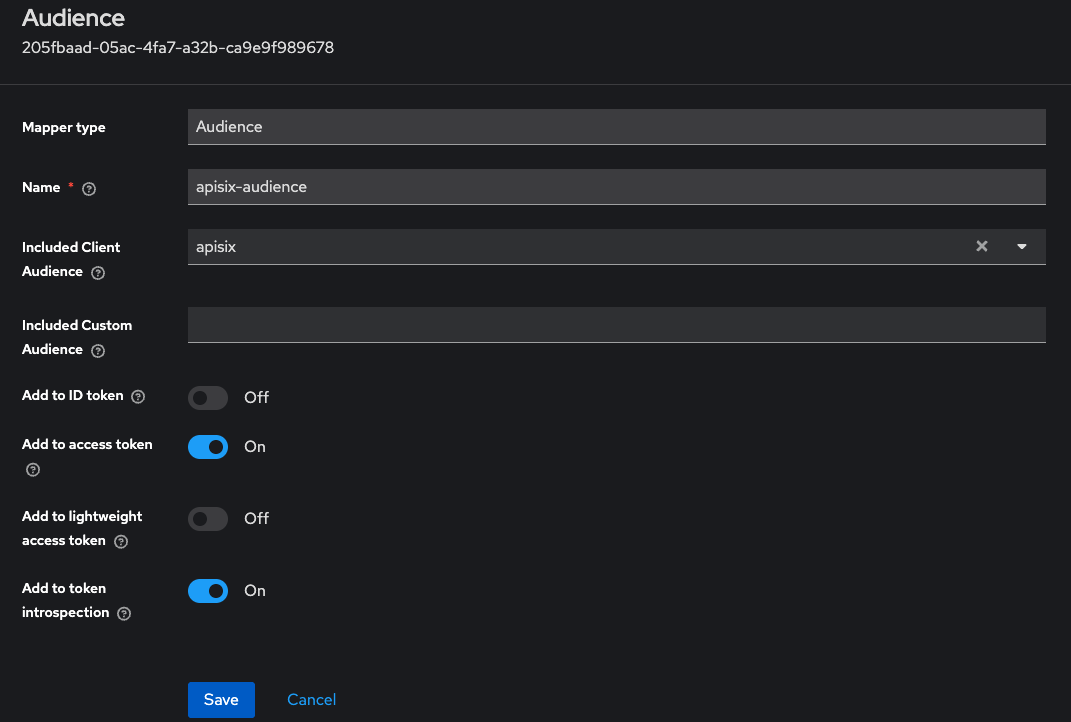
- Select Configure a new mapper → Audience
-
Set the following configurations:
- Name: apisix-audience
- Included client audience: apisix (select from dropdown)
- Included custom audience: (leave empty)
- Add to access token: On
- Add to token introspection: On
- Add to ID token / lightweight token: Off
-
Click Save
## Keycloak Reset Password
Resetting a Stargate User Password in Keycloak
Follow the steps below to reset the password of a Stargate user through the Keycloak administration console.
-
Connect to the HIN Gateway VM
-
Open the VM console, or connect to the HIN Gateway VM via SSH.
-
Retrieve the Keycloak administrator credentials
-
Open the
/var/data/vereign/.envfile -
Locate the following variables:
KEYCLOAK_ADMIN_USERKEYCLOAK_ADMIN_PASSWORD
-
Open the Keycloak Admin Console
- In a browser, navigate to:
http://<VM-IP>:8180/admin/master/console -
Replace
<VM-IP>with the IP address of the HIN Gateway VM. -
Sign in to Keycloak
- Enter the administrator username and password retrieved from the
.envfile. -
keep the same administrator password if you change it you must store it securely
-
Select the Stargate realm
-
From the realm selector in the Keycloak Admin Console, select Stargate.
-
Find the user
- Navigate to Users.
-
Search for and select the Stargate user whose password needs to be reset.
-
Reset the user's password
- Select the option to reset the user's password.
- Enter the new password and confirm the change.
Do not change or reset the Keycloak administrator password as part of this procedure. Any changes of admin password can lead to potention lockdown of keyclaok without anyone be able to access it!