Email Authentication (DKIM / ARC / SPF / DMARC)¶
Module: HIN Mail Gateway → Domains → [domain] → Email authentication Applies to: Domain administrators configuring outbound signing and inbound verification for a mail domain
The Email authentication section controls how to proves the authenticity of mail, and how strictly it validates authenticity on mail - DKIM/ARC/SPF/DMARC verification. It also generates the DNS TXT records that must be published so external mail servers can verify your domain's mail.
The section is reached via:
The panel has five sub-sections:
- DKIM
- ARC
- SPF
- DMARC
- DNS records to publish
Changes are only applied after clicking Save button at the bottom of the page
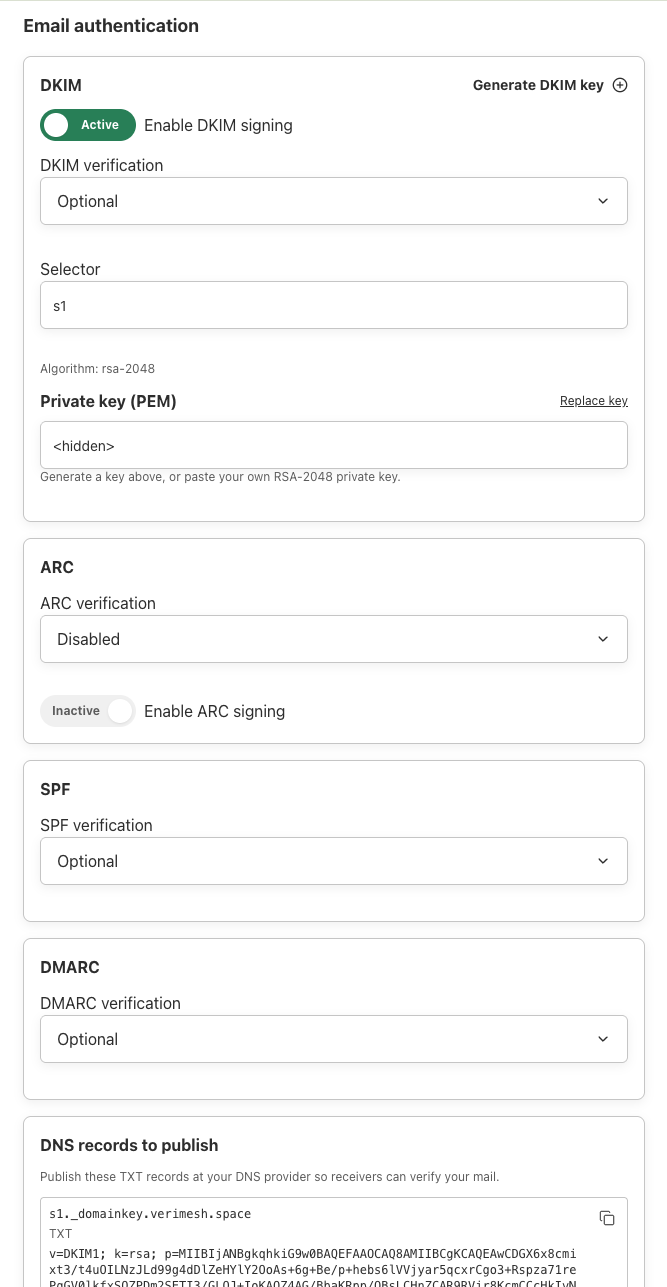
what each protocol does¶
| Protocol | Direction | Purpose |
|---|---|---|
| DKIM (DomainKeys Identified Mail) | Outbound signing / Inbound verification | Cryptographically signs outgoing messages with a private key, tied to a DNS-published public key, so receivers can confirm the message wasn't altered in transit and genuinely originated from this domain |
| ARC (Authenticated Received Chain) | Signing inbound verification for next relay | Preserves the original DKIM/SPF authentication results as a message passes through intermediaries (e.g. mailing lists, forwarding services) that would otherwise break DKIM signatures |
| SPF (Sender Policy Framework) | Inbound verification | Checks that the sending mail server's IP address is authorized to send mail for the sender's domain, based on a DNS record published by that domain |
| DMARC (Domain-based Message Authentication, Reporting & Conformance) | Inbound verification | Ties DKIM and SPF results together and tells receiving servers what to do |
Getting DKIM and DMARC right for your own domain protects your deliverability and brand from spoofing. The verification settings (DKIM, ARC, SPF, DMARC verification dropdowns) instead control how strictly the gateway trusts these signals on inbound mail from other domains.
DKIM¶
| Field | Description |
|---|---|
| Enable DKIM signing | When Active, the gateway signs all outbound mail from this domain with the configured private key. Turn this on before publishing the DKIM DNS record |
| Generate DKIM key (button, top right) | Generates a new RSA-2048 key pair for this domain and populates the Private key (PEM) field |
| DKIM verification | Controls how strictly ан еmail is checked against the sender's published DKIM record |
| Selector | The DKIM selector (e.g. s1) used to publish and look up the public key at <selector>._domainkey.<domain>. Change this only if you need to run multiple keys in parallel (e.g. during a key rotation) — each selector needs its own DNS TXT record |
| Private key (PEM) | The RSA private key used to sign outbound mail. You can either click Generate DKIM key to create one, or paste your own RSA-2048 private key in PEM format |
How to set up DKIM for a new domain¶
- Click Generate DKIM key (or paste an existing RSA-2048 PEM key you manage externally)
- Leave the Selector at the default (
s1) unless you have a reason to change it - Toggle Enable DKIM signing to Active
- Click Save
- Copy the generated
s1._domainkey.<domain>TXT record from the DNS records to publish box (see §7) and add it at your DNS provider - Once the DNS record has propagated, mail signed by this domain will carry a valid DKIM signature
How to rotate a DKIM key¶
- Click Replace key next to Private key (PEM)
- Generate a new key (or paste a new one)
- Publish the new selector's TXT record in DNS before saving/enabling it in production, to avoid a window where signed mail can't be verified
- Save, then remove the old selector's DNS record once you've confirmed the new key is signing correctly
ARC¶
| Field | Description |
|---|---|
| ARC verification (dropdown) | Controls how strictly inbound ARC chains are validated |
| Enable ARC signing | When Active, the gateway adds an ARC seal to forwarded mail, preserving authentication results if the message is later relayed through another system |
| Reuse DKIM key (toggle) | When Active, ARC signing uses the same RSA key configured in the DKIM section above instead of requiring a separate key. Recommended unless you have a specific need to keep the two signatures cryptographically separate |
SPF¶
| Field | Description |
|---|---|
| SPF verification | Controls how strictly inbound mail is checked against the sending domain's published SPF record |
Note: This panel only controls verification of inbound SPF — it does not generate an outbound SPF TXT record for your own domain (no SPF entry appears in §7 "DNS records to publish"). If this domain sends mail through an external relay (e.g. Microsoft 365, as configured in Mail routing → Outbound relay), make sure that provider's SPF
include:mechanism is already published in your domain's own SPF record at your DNS provider, independently of this gateway.
DMARC¶
| Field | Description |
|---|---|
| DMARC verification | Controls how strictly inbound mail is checked against the sender's DMARC policy |
Verification value¶
| UI label | value | Behavior |
|---|---|---|
| Disabled | disable | Not checked at all. Mechanism doesn't run |
| Optional | relaxed | Verified and reported in Authentication-Results. Message is always accepted, pass or fail |
| Required | strict | Verified and reported, and the message is rejected if it hard-fails. Otherwise accepted |
So yes — Disabled = don't check; Optional and Required both check and stamp the result. The only difference between the two is enforcement: Optional never rejects, Required rejects on a hard failure.
What counts as a "hard failure" for Required (per mechanism): - DKIM — the message carries signatures and all of them fail. No signature at all = none, not a failure → not rejected. - SPF — a hard -all fail. SoftFail/neutral/none/temp-error are reported but don't reject. - DMARC — neither DKIM nor SPF aligns and there's an actual fail verdict. No DMARC record published = none → not rejected. - ARC — the ARC chain fails validation. No chain = none → not rejected.
Two important notes: - DKIM always runs internally because DMARC needs it. The DKIM setting only controls whether a dkim= result is stamped and whether DKIM failure can reject — it never changes the DMARC verdict. - Each mechanism is independent, so you can e.g. run DMARC = Required while DKIM/SPF = Optional: bad mail gets rejected on the DMARC verdict, and you still get individual dkim=/spf= lines in the header for visibility.
DNS records to publish¶
This box shows the exact TXT records you must create at your domain's DNS provider so external mail servers can verify mail from this domain. Records shown update automatically based on your DKIM selector and DMARC policy settings above.
| Record | Host | Type | Value |
|---|---|---|---|
| DKIM public key | <selector>._domainkey.<domain> (e.g. s1._domainkey.vrgnservices.eu) | TXT | v=DKIM1; k=rsa; p=<public key> |
| DMARC policy | _dmarc.<domain> (e.g. _dmarc.vrgnservices.eu) | TXT | v=DMARC1; p=<policy> (e.g. p=none) |
Use the copy icon in the top-right corner of each record box to copy its exact value. Paste each one as a new TXT record at your DNS registrar/provider, using the Host/Name and Value as shown.
DNS changes can take anywhere from a few minutes to 48 hours to propagate, depending on your provider's TTL settings. DKIM/DMARC enforcement should not be tightened (e.g. enabling signing or moving DMARC policy beyond
none) until you've confirmed the records have propagated and resolve correctly.
Saving changes¶
None of the settings above take effect until you click the orange Save button at the bottom of the page. Save applies all changes across DKIM, ARC, SPF, and DMARC together — there is no per-section save.
Troubleshooting¶
| Symptom | Likely cause |
|---|---|
| Outbound mail fails DKIM at receiving servers | DKIM signing enabled but DNS TXT record not yet published/propagated, or selector mismatch between gateway and DNS. |
| ARC seal missing on forwarded mail | Enable ARC signing is off, or Reuse DKIM key is off with no separate ARC key configured. |
| Can't see the DKIM private key to copy it elsewhere | By design — once saved, the key is masked (<hidden>) and cannot be re-displayed. Use Replace key to issue a new one if you need to move it to a system that doesn't already have a copy. |
| Legitimate mail starts getting quarantined/rejected after a DMARC policy change | Some legitimate sending source isn't DKIM/SPF-aligned yet. Roll the policy back to none, identify the failing source, fix alignment, then re-tighten. |