Stargate mail relay setup
Create a Stargate relay for a mail domain hosted in Microsoft Office 365
For the relay, we need a VM or a server with a real static IP address.
In this example we will use a VM with IP address 128.140.117.200 and hostname mail.vrgnservices.eu to relay mail for domain vrgnservices.eu.
Set up DNS records
See the DNS Setup Guide for complete instructions on all required records (A, MX, SPF, PTR, DMARC, DKIM).
Quick example for domain vrgnservices.eu with Stargate IP 128.140.117.200:
- A record:
mail.vrgnservices.eu→128.140.117.200 - MX record:
MX @ 15 mail.vrgnservices.eu.(higher priority than the existing Exchange MX at 20) - SPF record:
v=spf1 ip4:128.140.117.200 include:spf.protection.outlook.com -all
Verify:
# host -t mx vrgnservices.eu
vrgnservices.eu mail is handled by 20 vrgnservices-eu.mail.protection.outlook.com.
vrgnservices.eu mail is handled by 15 mail.vrgnservices.eu.
# host -t txt vrgnservices.eu|grep v=spf1
vrgnservices.eu descriptive text "v=spf1 ip4:128.140.117.200 include:spf.protection.outlook.com -all"
Install the Stargate docker compose containers
Requirements
- 2 CPU cores (minimum)
- 4 GB RAM (minimum)
- 20 GB storage (minimum)
- Root access: Must be run as root or with
sudo - Supported distributions:
- RHEL 8, 9 and 10 compatible distributions such as Alma Linux, Rocky Linux, CentOS Stream
- Ubuntu 22 and 24
- Debian 11, 12 and 13
- Real IPv4 address
- Valid DNS records: Your domain must have:
- MX records pointing to your mail servers
- SPF record defining allowed sending networks
The script installs all components and starts them. Mail domains and the Stalwart hostname are then configured at runtime via the dashboard's /mail page (the mtaconf daemon extracts the necessary mail relay settings from DNS based on those domains).
Set up Exchange
We need to configure connectors and a transport rule in Exchange to relay all outgoing mail to the Stargate relay and allow incoming mail from it.
Navigate to https://admin.exchange.microsoft.com/#/connectors
Outgoing connector
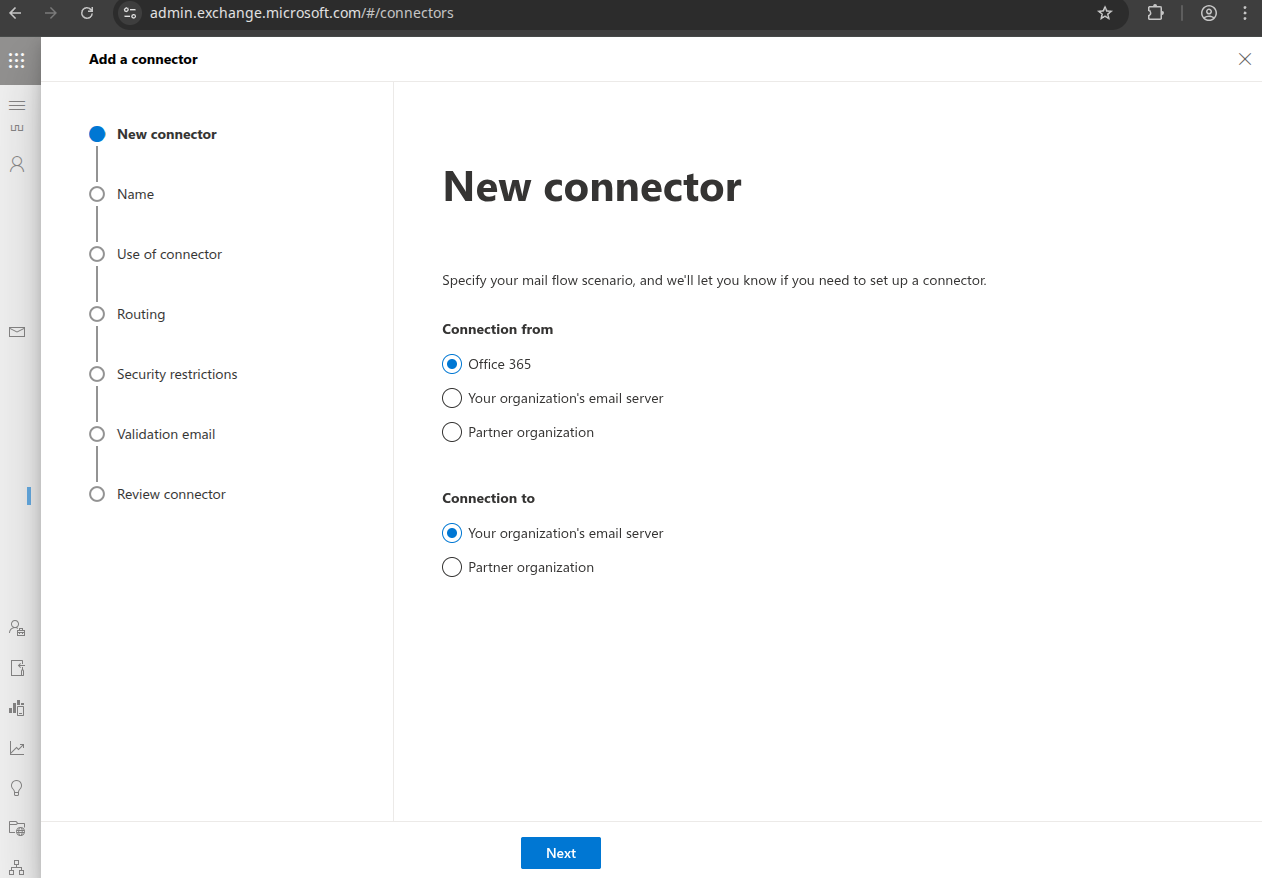
Create an outgoing mail connector, click "Add":
Select "Connection from": "Office 365" "Connection to": "your organization's email server", click "Next".
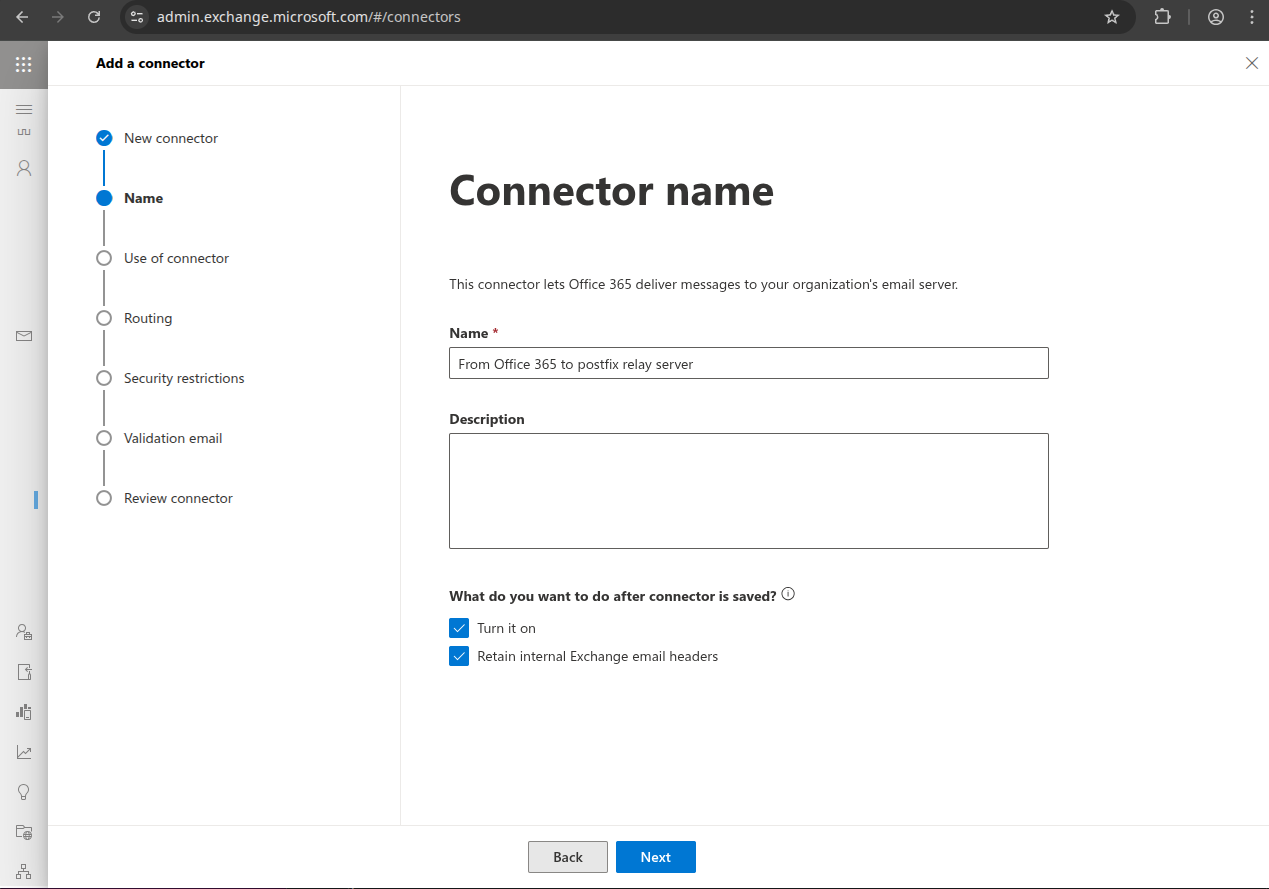
Name it something like "From Office 365 to Stargate relay server" and check "Retain Internal Exchange email headers", click "Next".
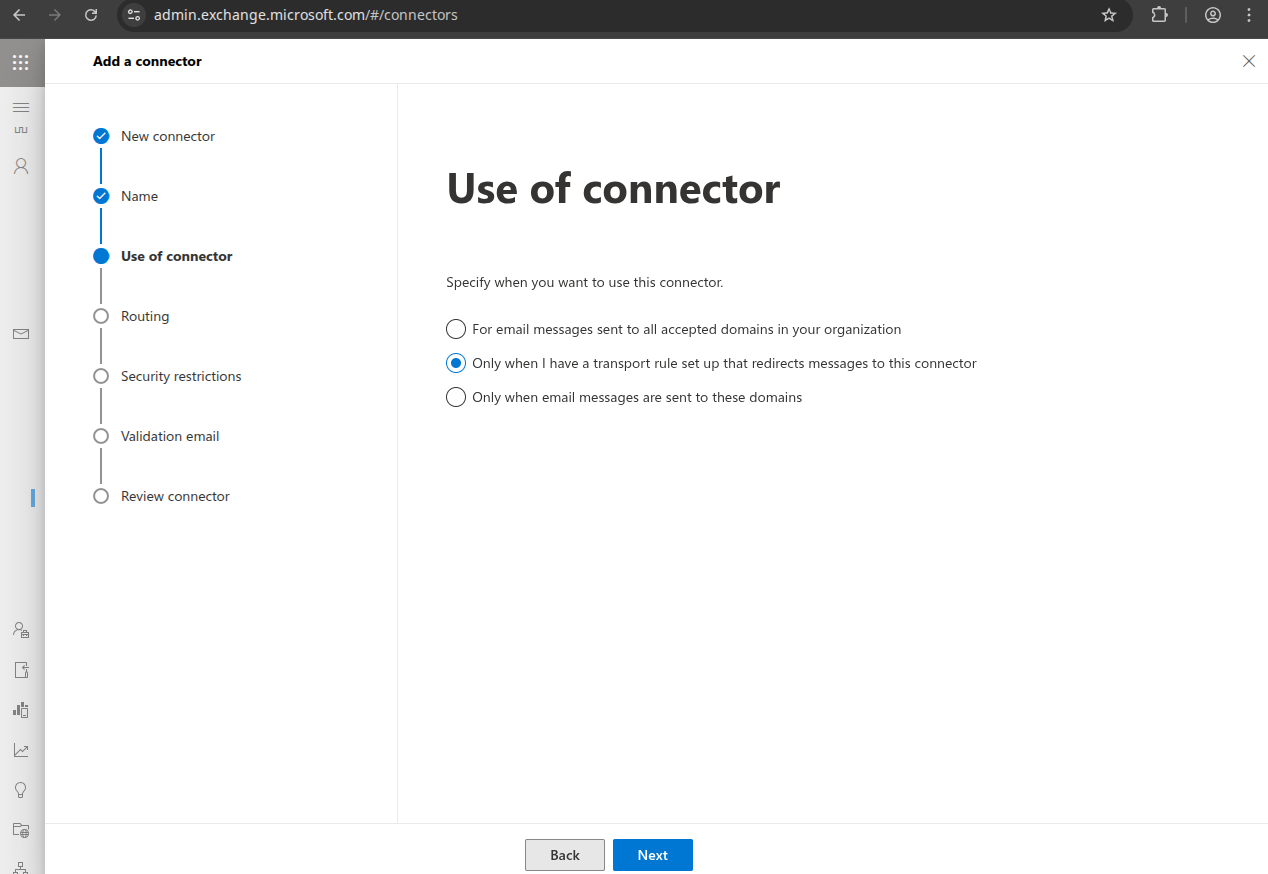
Select "Only when I have a transport rule set up that redirects messages to this connector", click "Next".
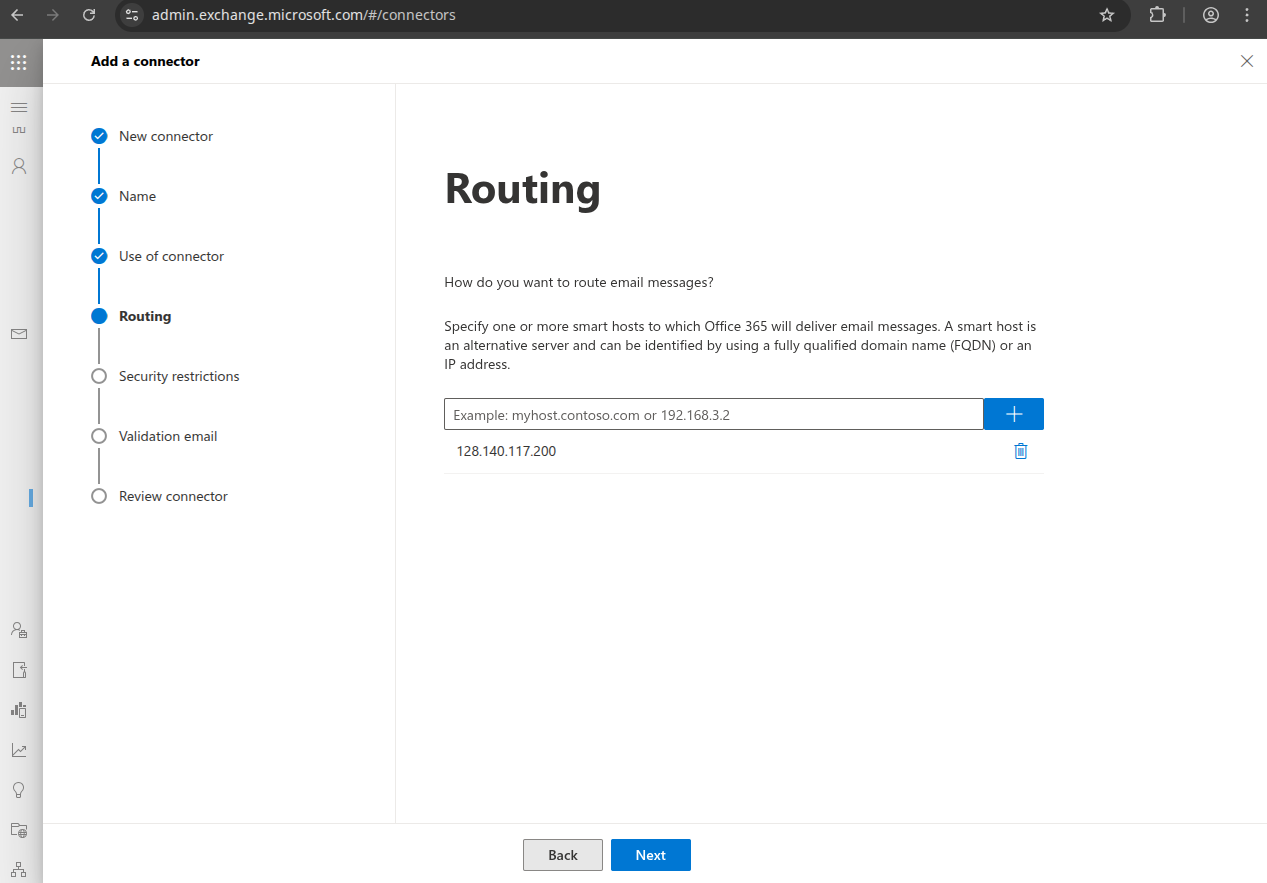
Enter the IP address of the Stargate relay server, click "+", click "Next".
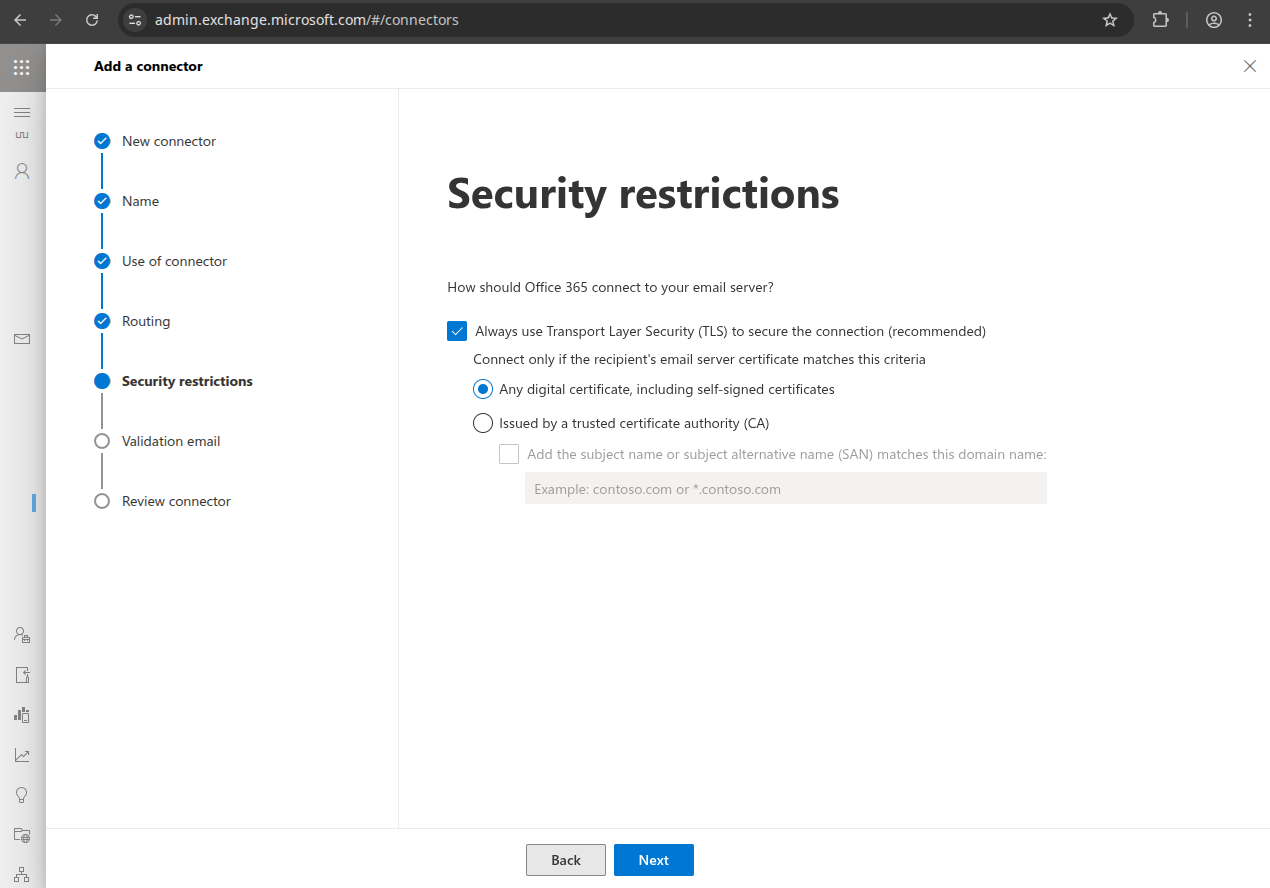
Select "Any digital certificate, including self-signed certificates", click "Next".
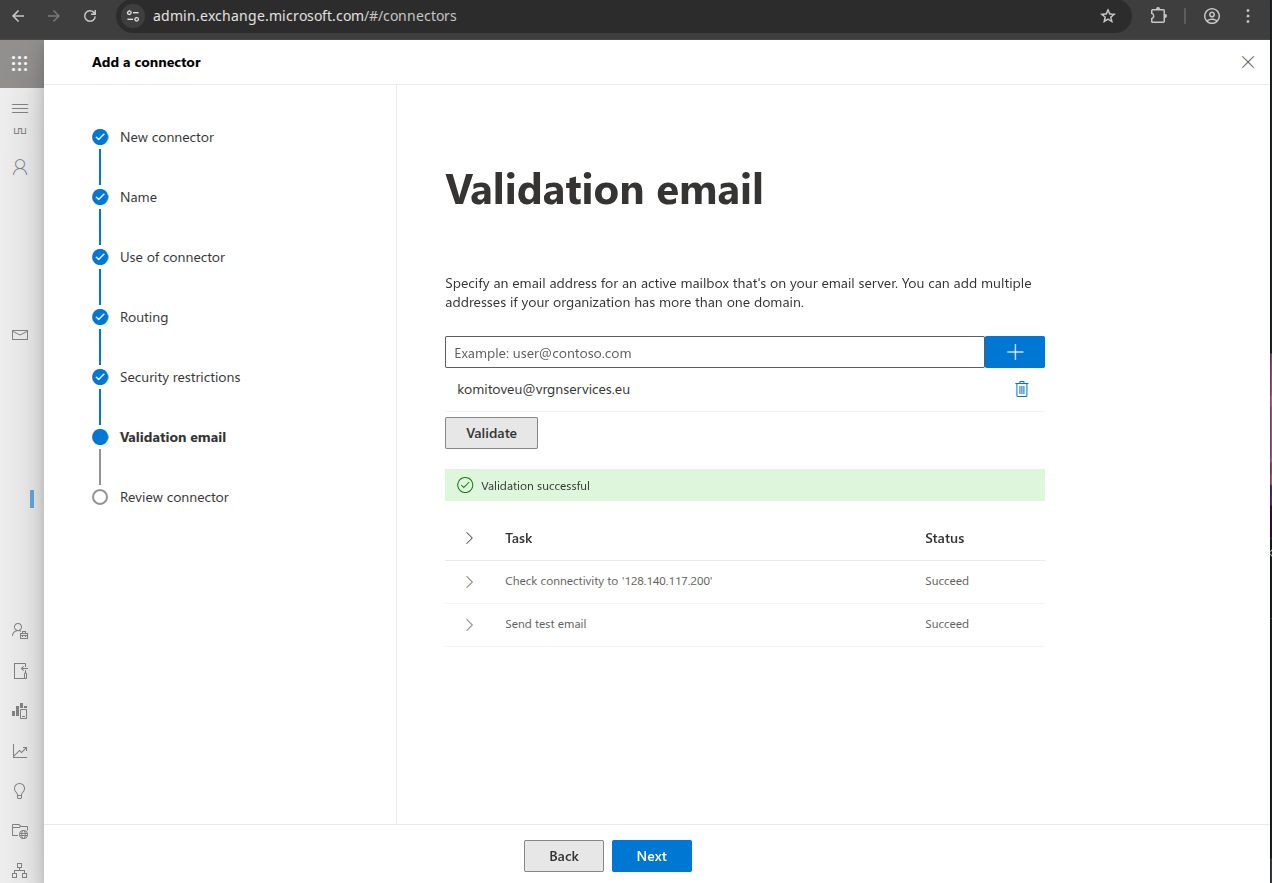
Enter a valid email address for your domain, click "+", click "Validate", click "Next".
Click "Create connector".
Click "Add another connector".
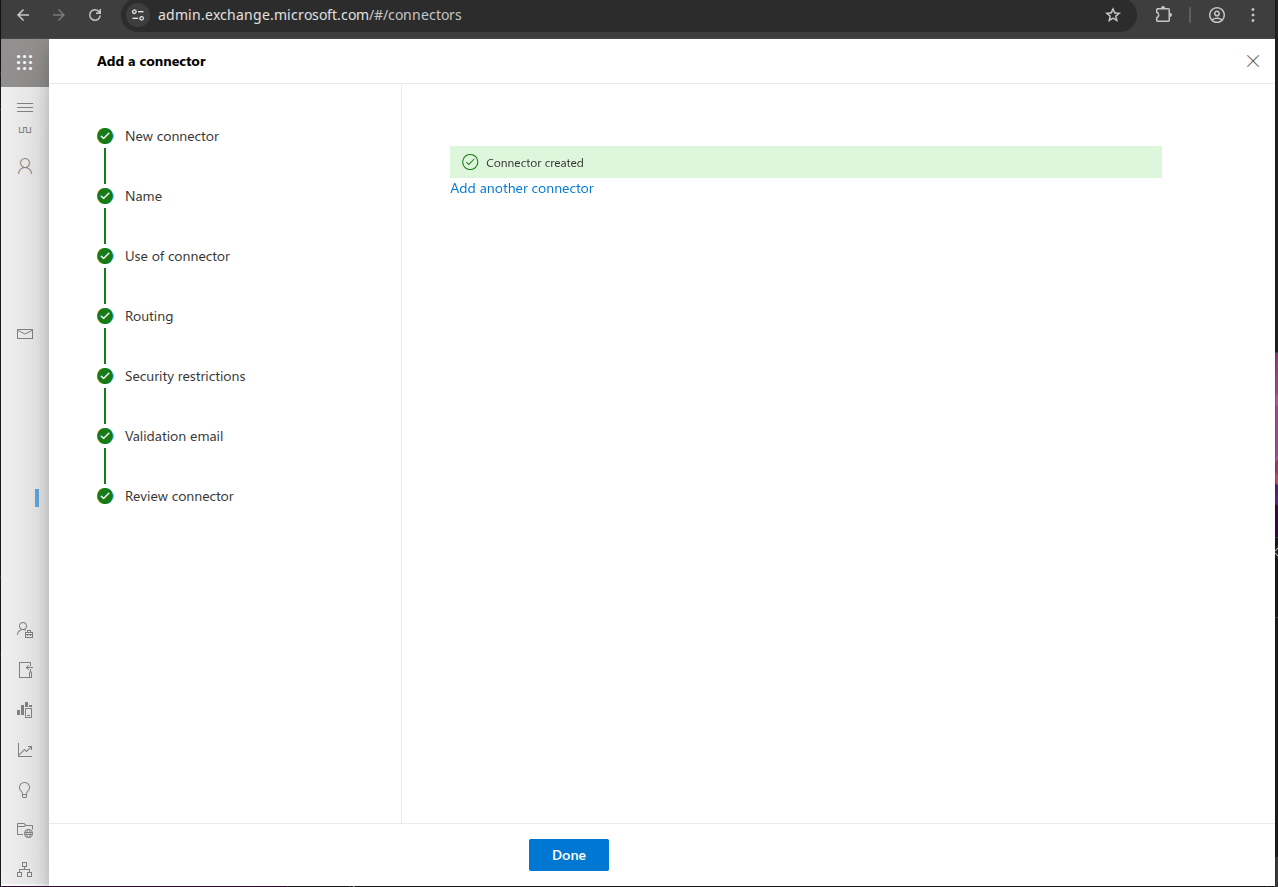
Incoming connector
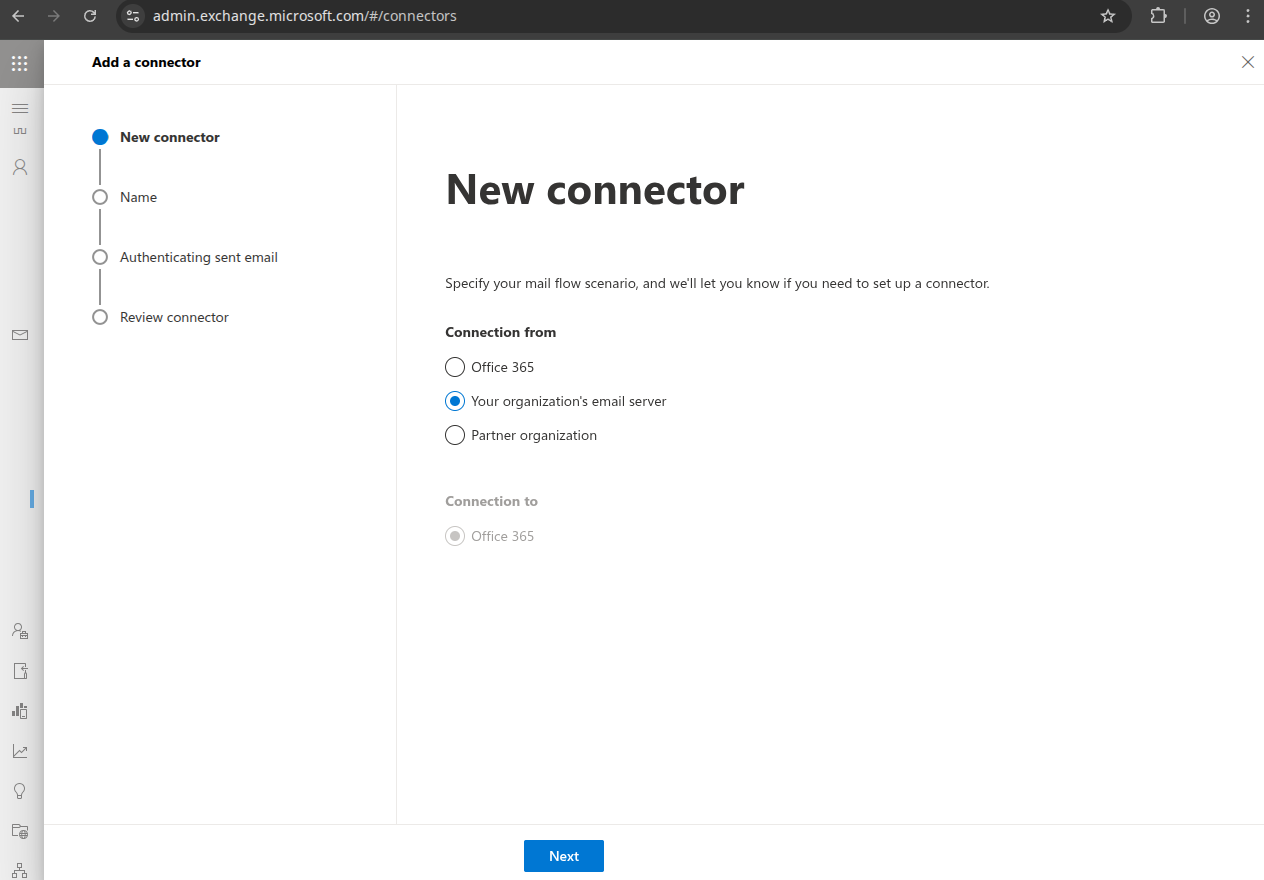
Create an incoming mail connector, choose "Connection from": "Your organization's email server", click "Next".
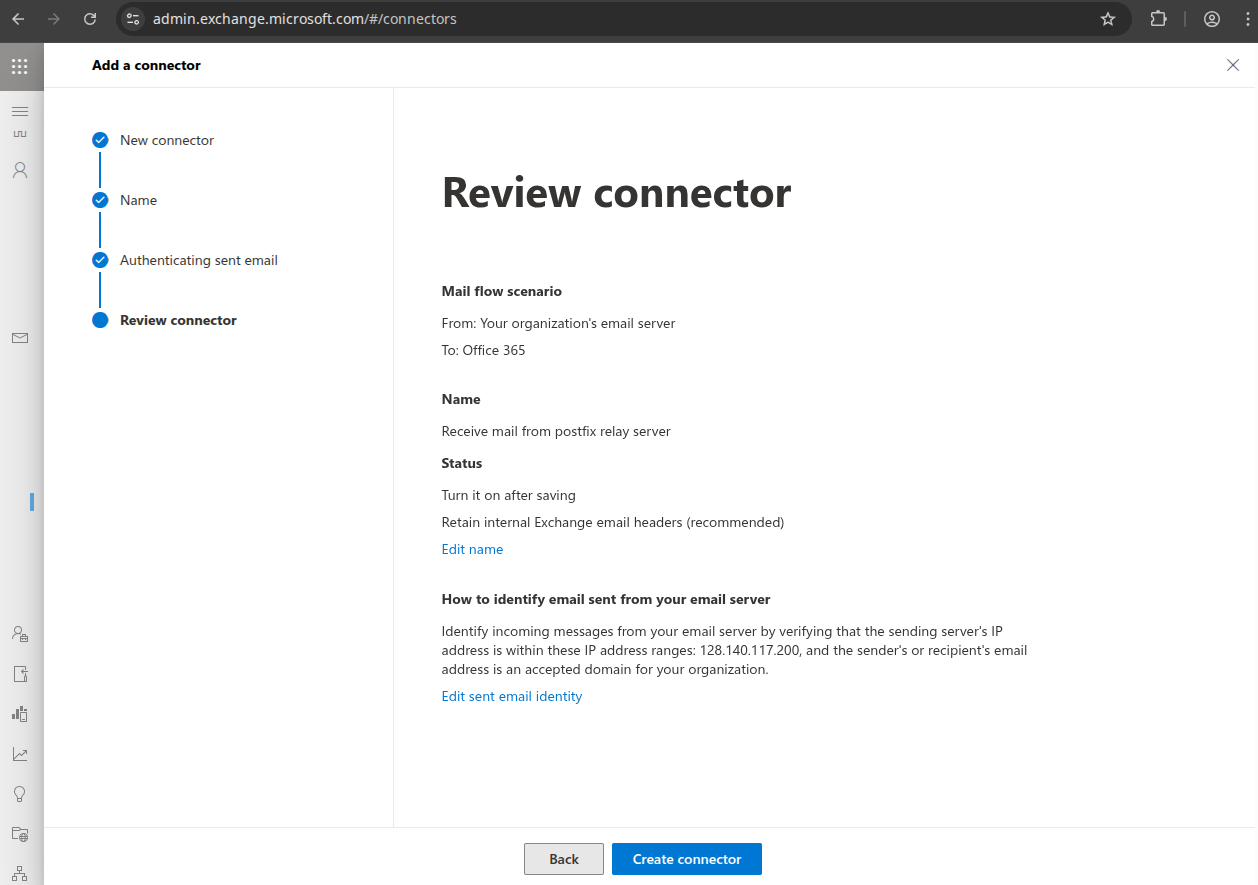
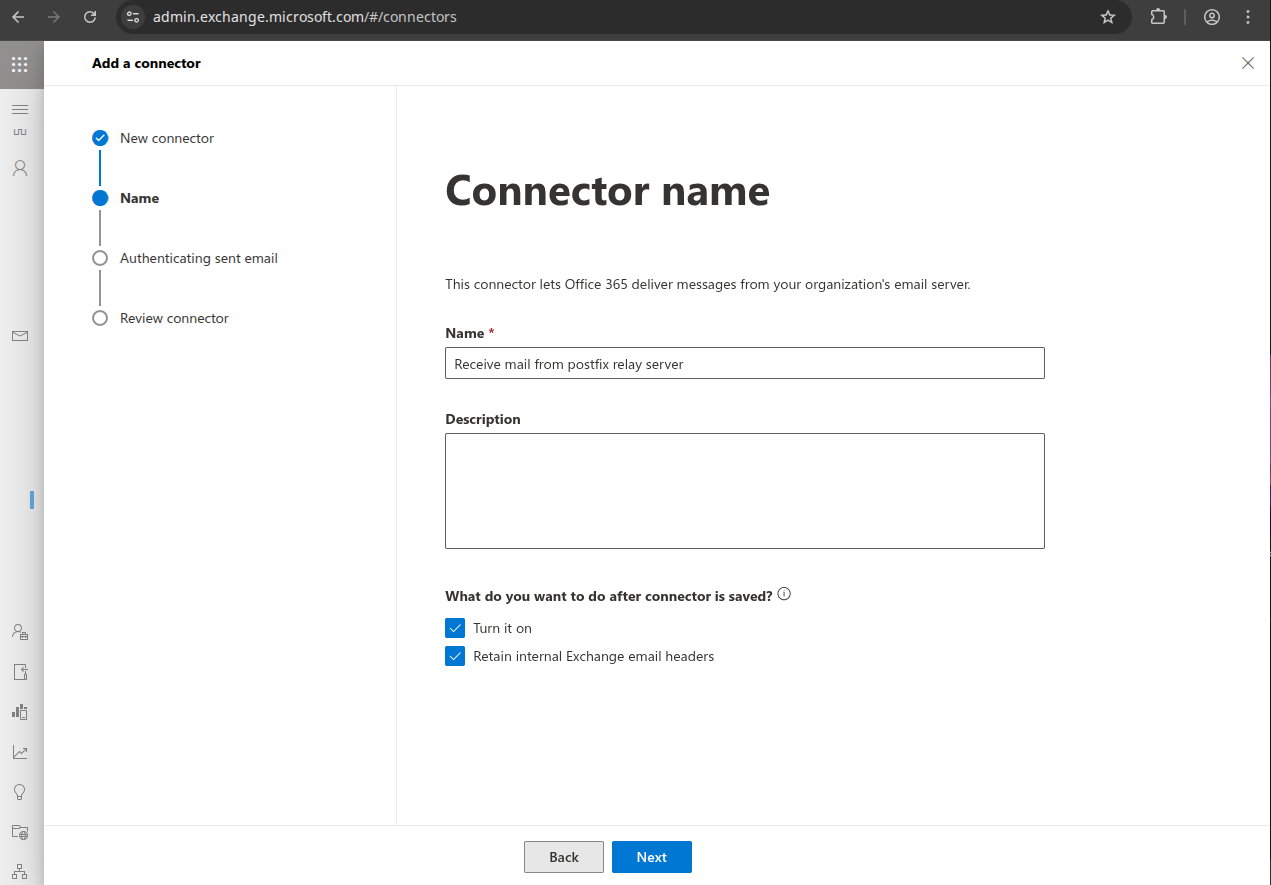
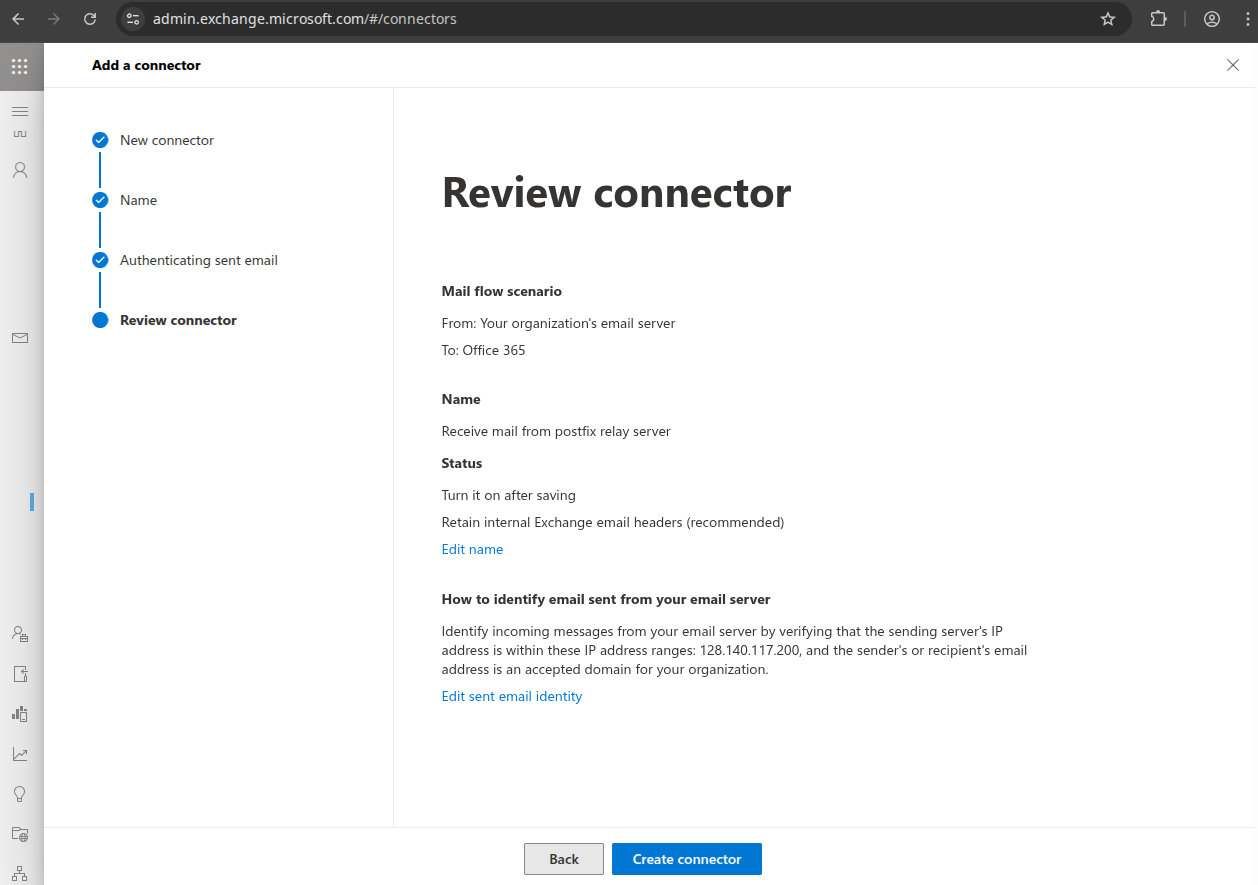
Name it something like "Receive mail from Stargate relay server" and check "Retain internal Exchange email headers", click "Next.
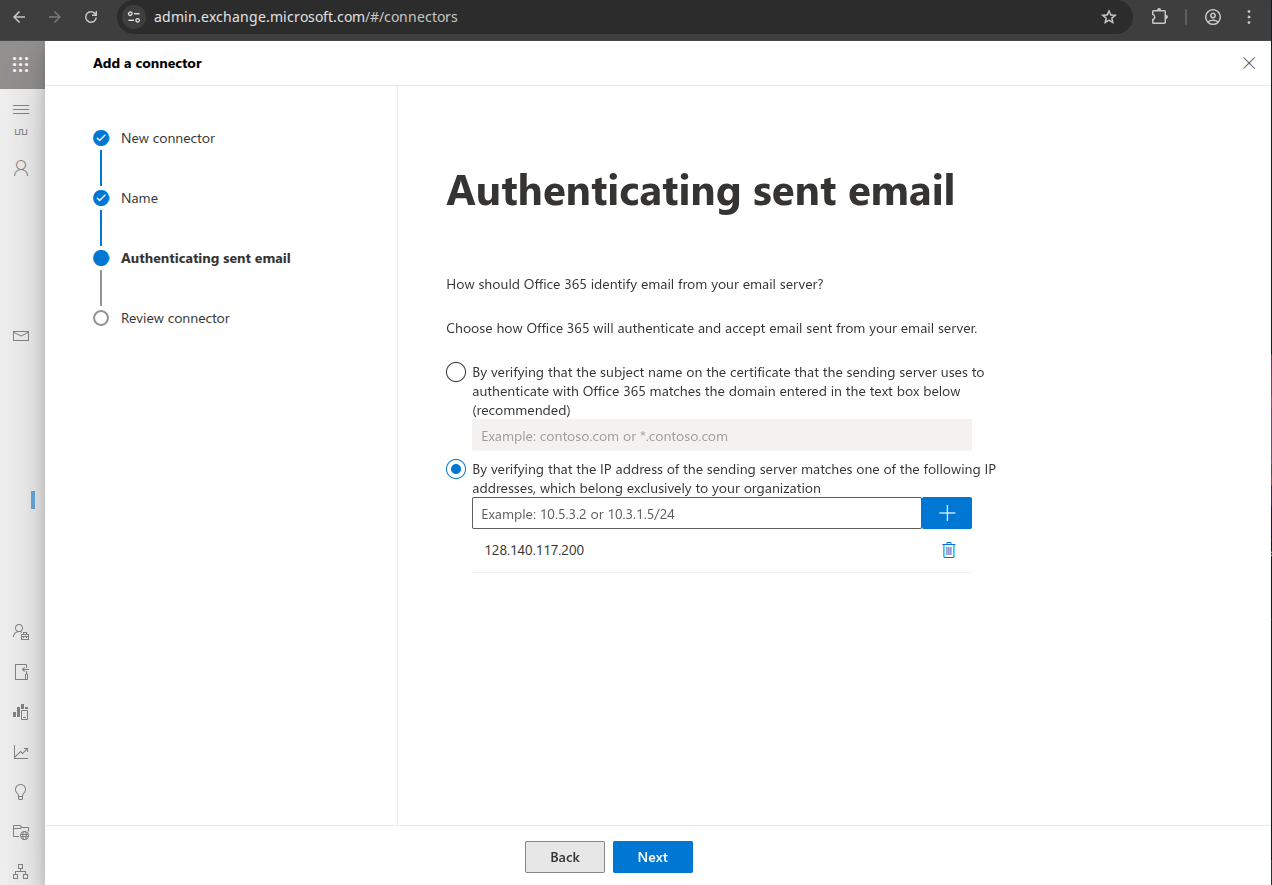
Select "By verifying that the IP address of the sending server matches one of the following IP addresses, type the IP address of the Stargate server, click "+", click "Next".
Click "Create connector".
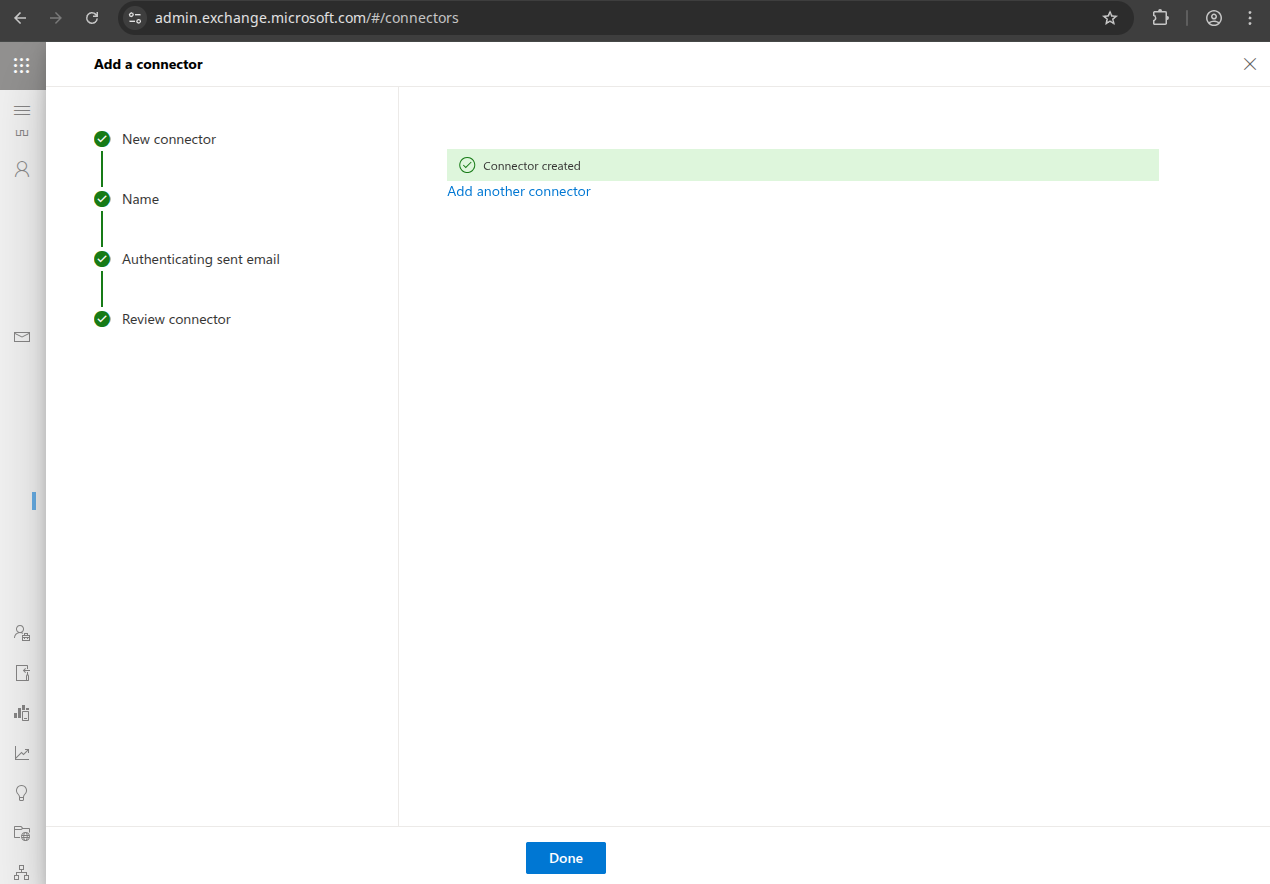
Click "Done".
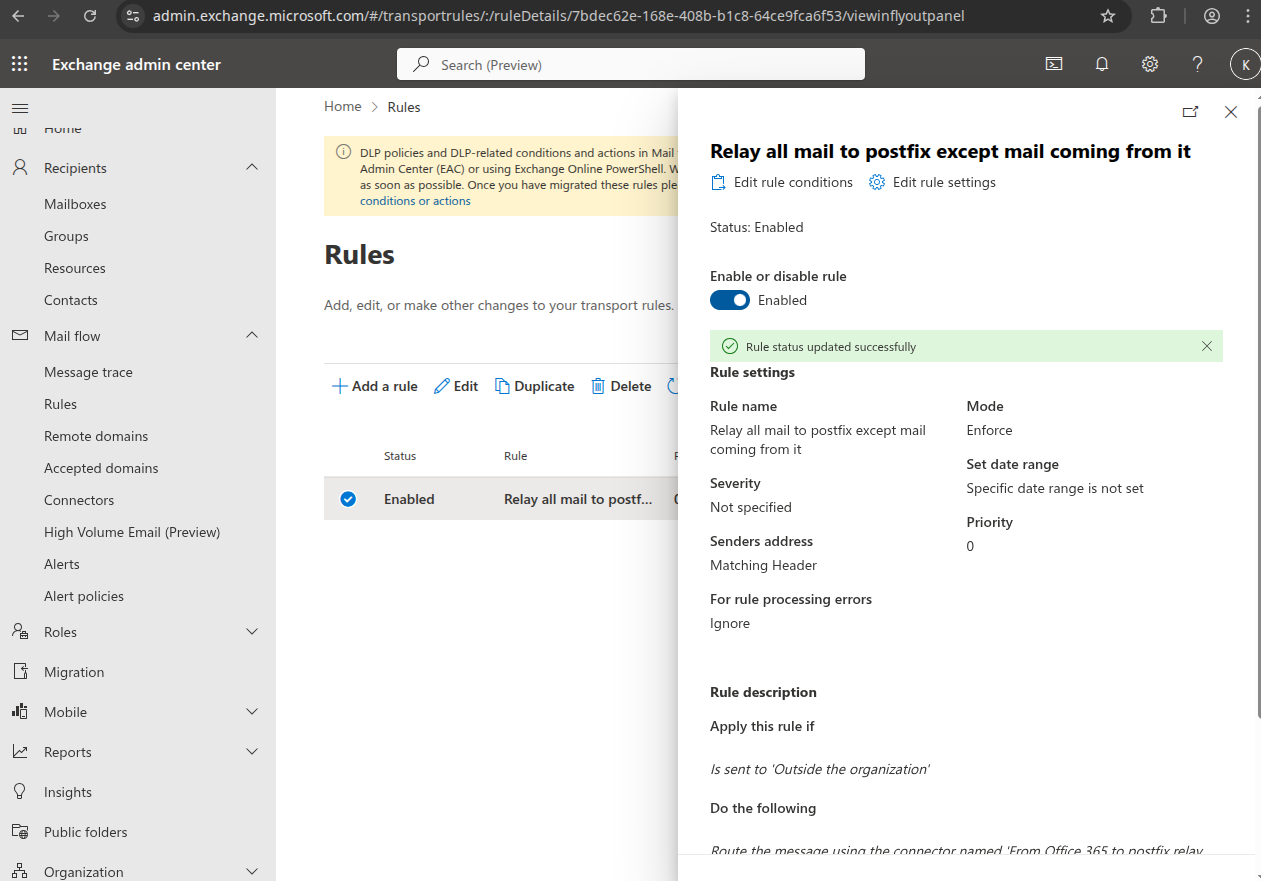
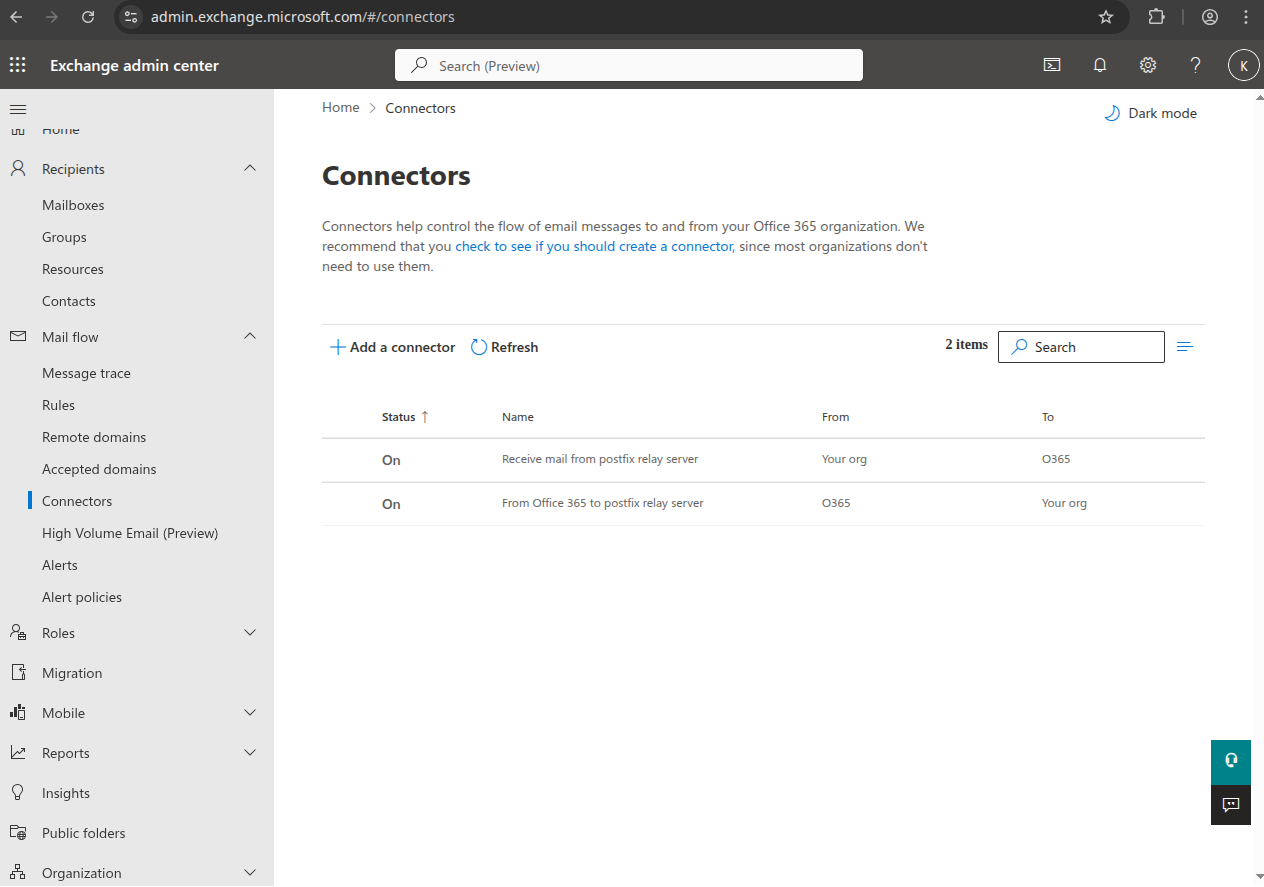
This is how it looks when done:
Transport Rule
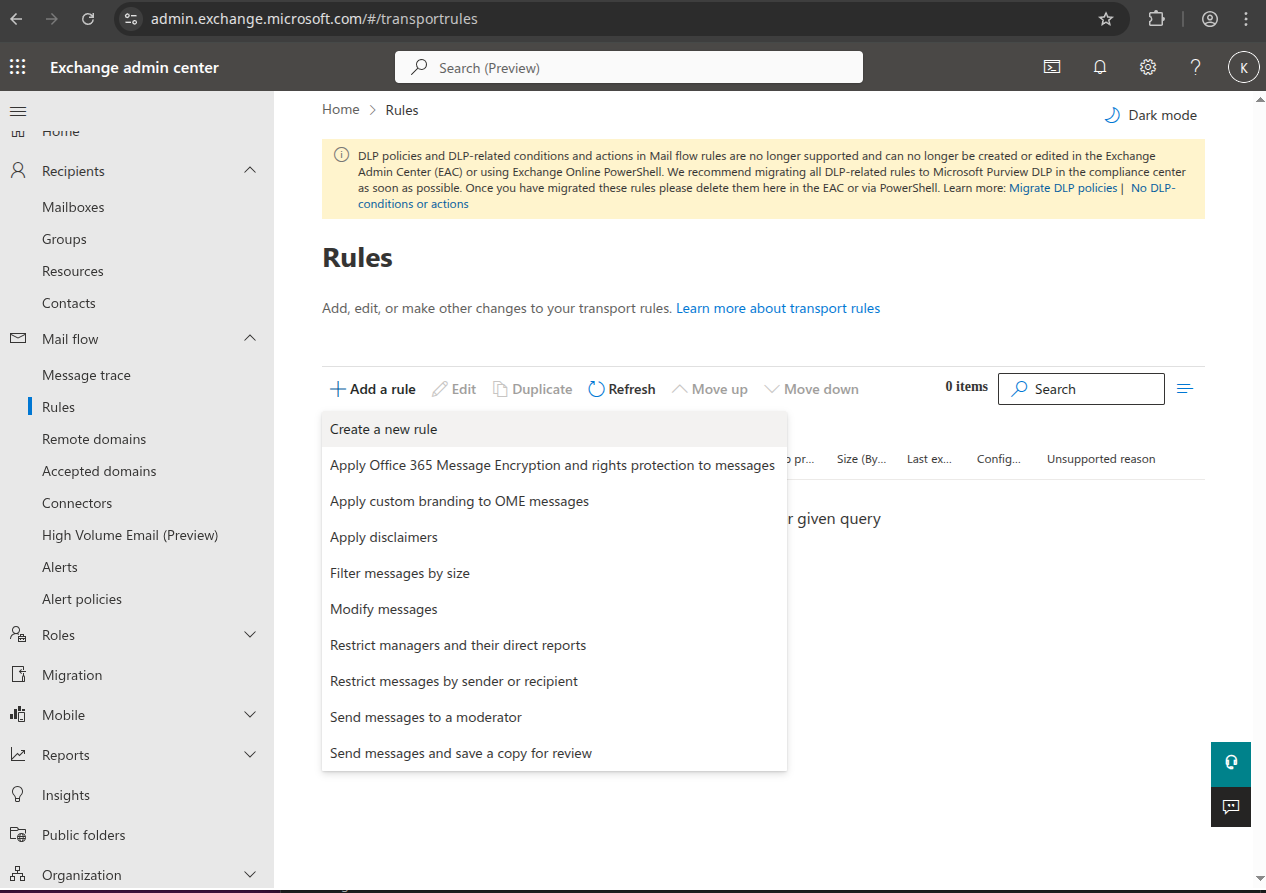
Create the transport rule. Navigate to https://admin.exchange.microsoft.com/#/transportrules
Click "+Add a rule" → "Create a new rule".
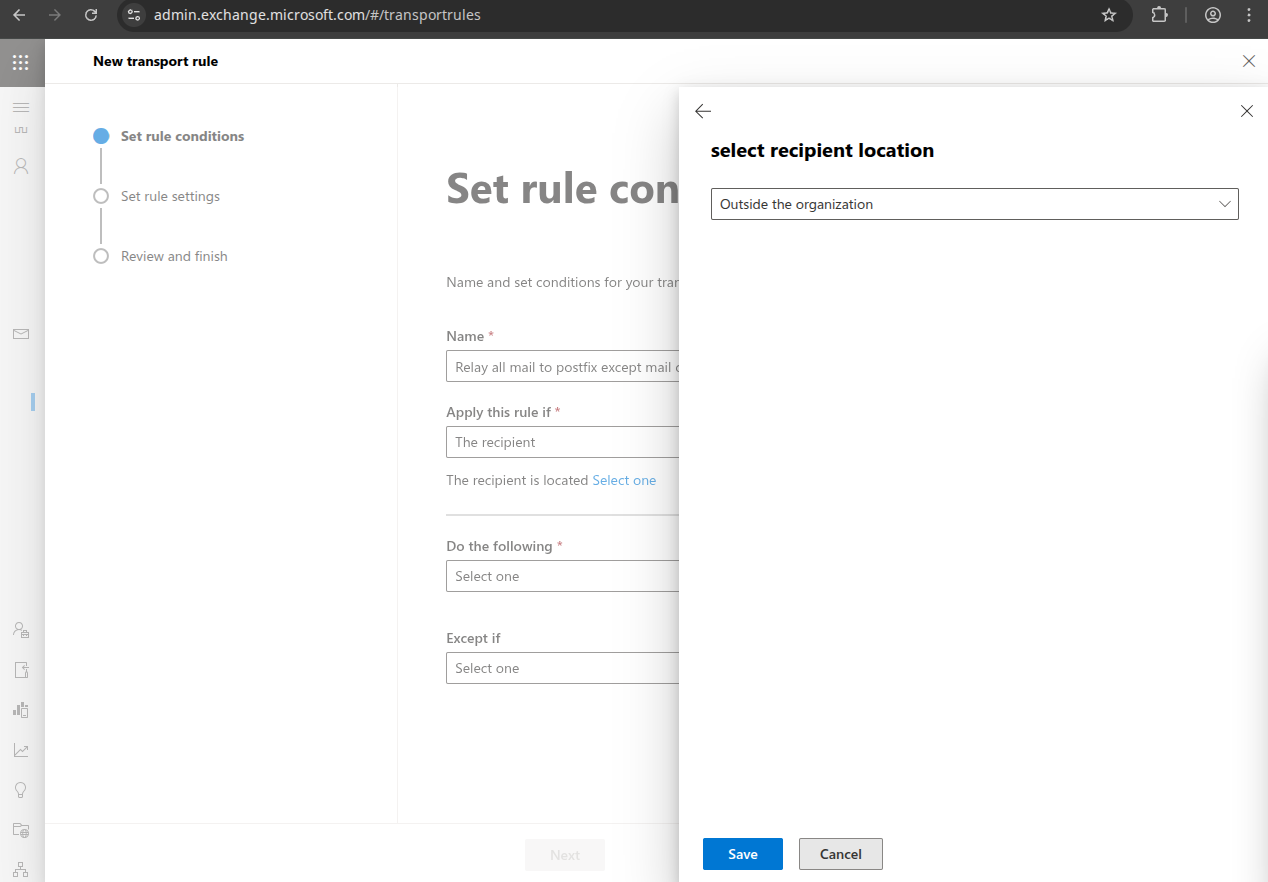
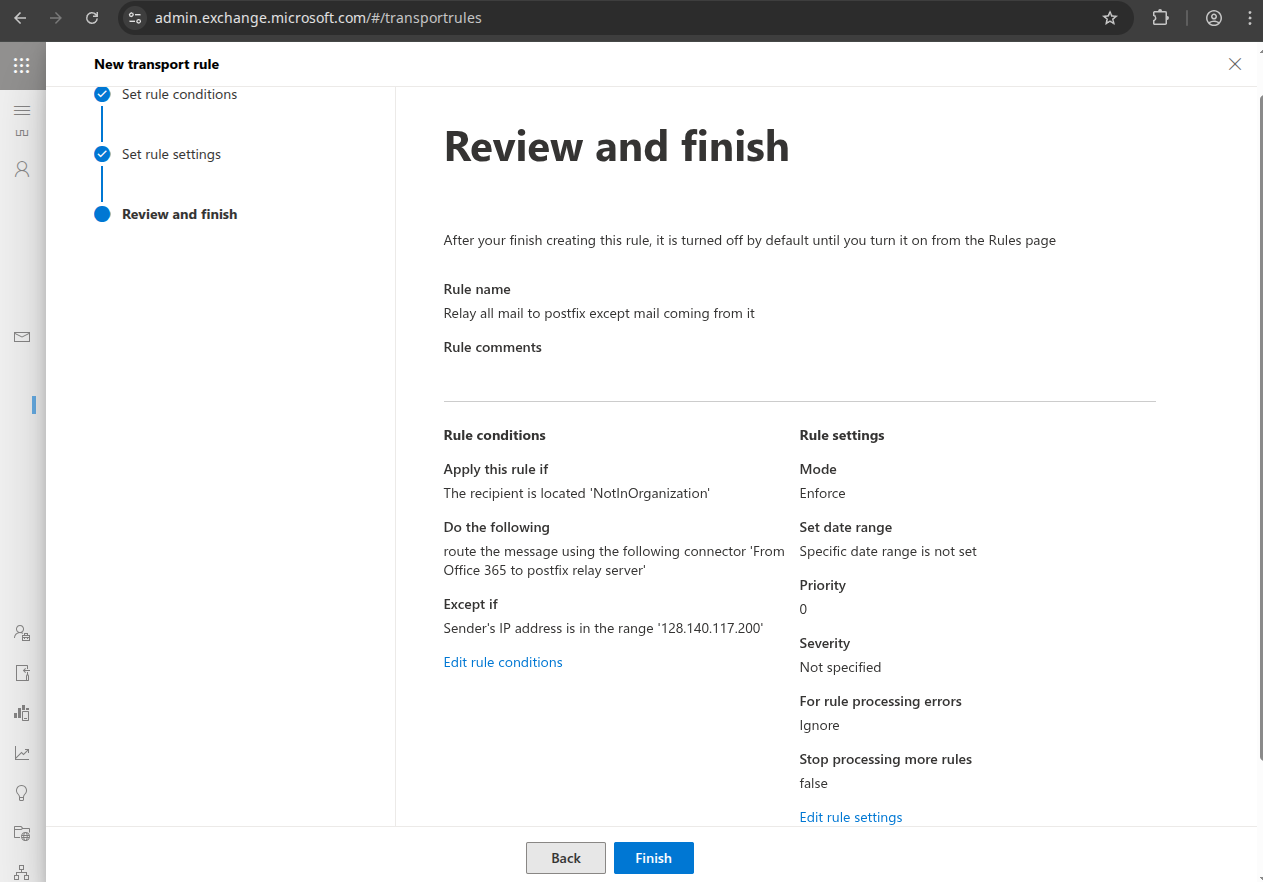
Name it something like "Relay all mail to Stargate except mail coming from it", choose "Apply rule if" "The recipient:" "is external/internal" "Outside the organization", click "Save".
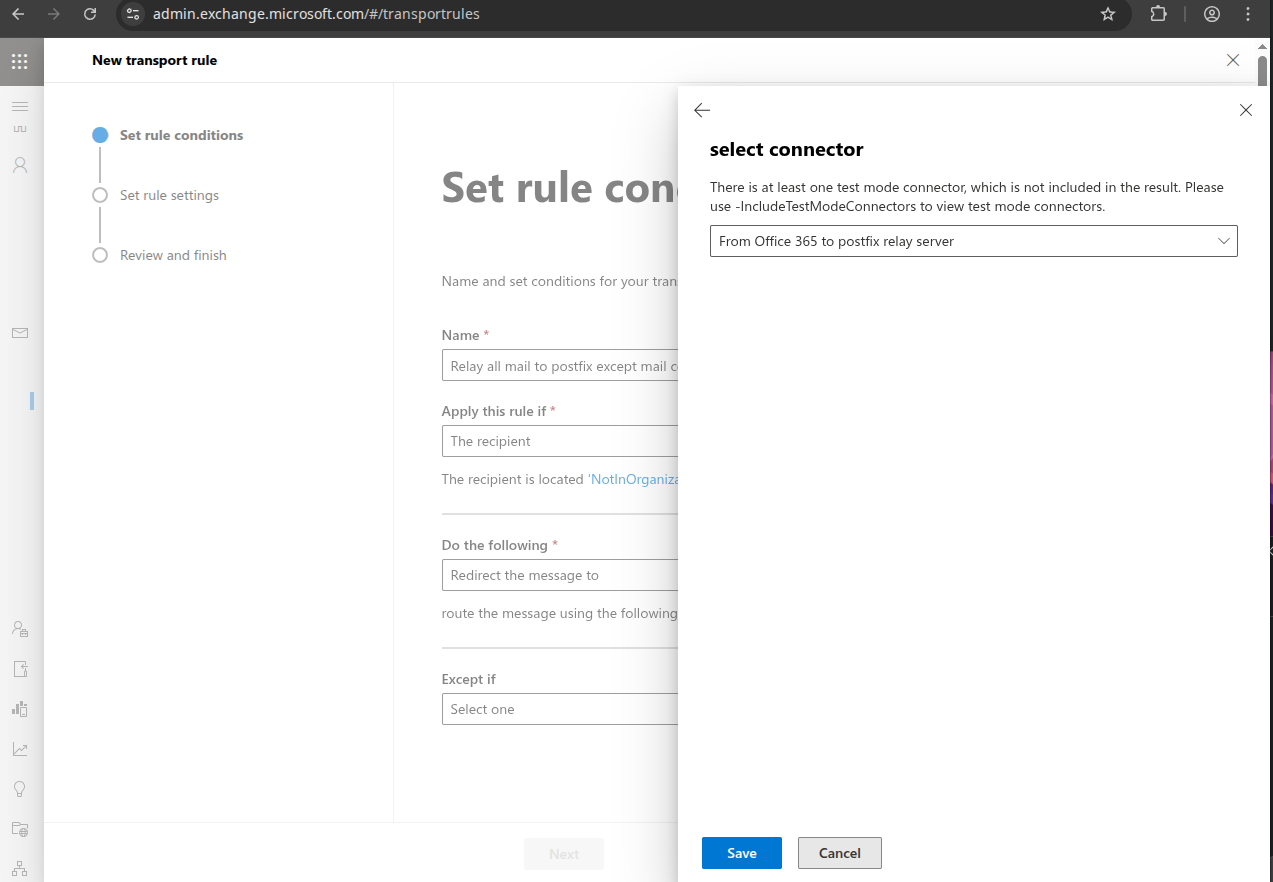
Choose "Do the following" "Redirect message to the following connector" "From Office 365 to Stargate relay server", click "Save".
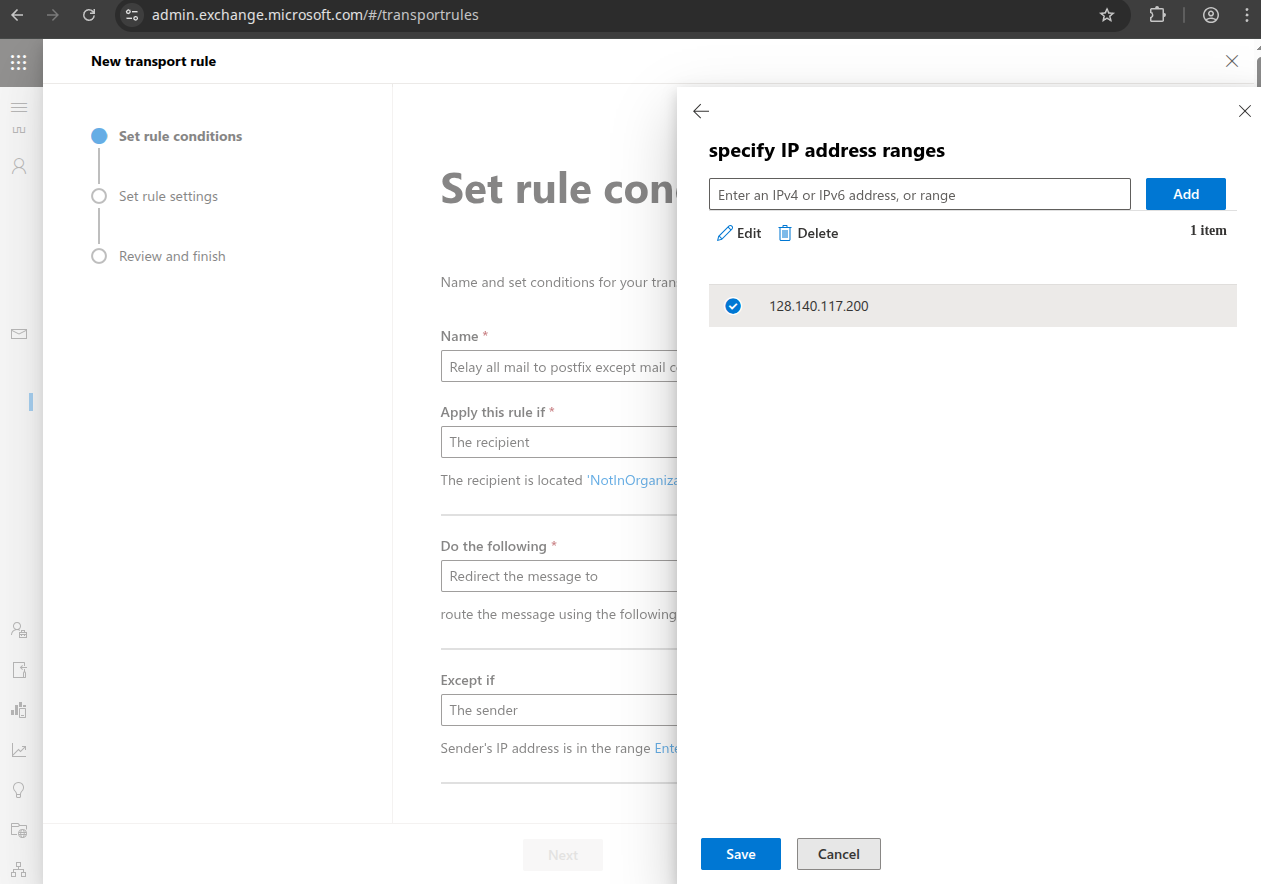
Choose "Except if The sender IP address is in any of these ranges" enter the IP address of the Stargate server, click "Add", check the IP address and click "Save".
This is needed to prevent mail loops, as this rule also applies to other domains hosted in Office 365.
Now it should look like this, click "Next":
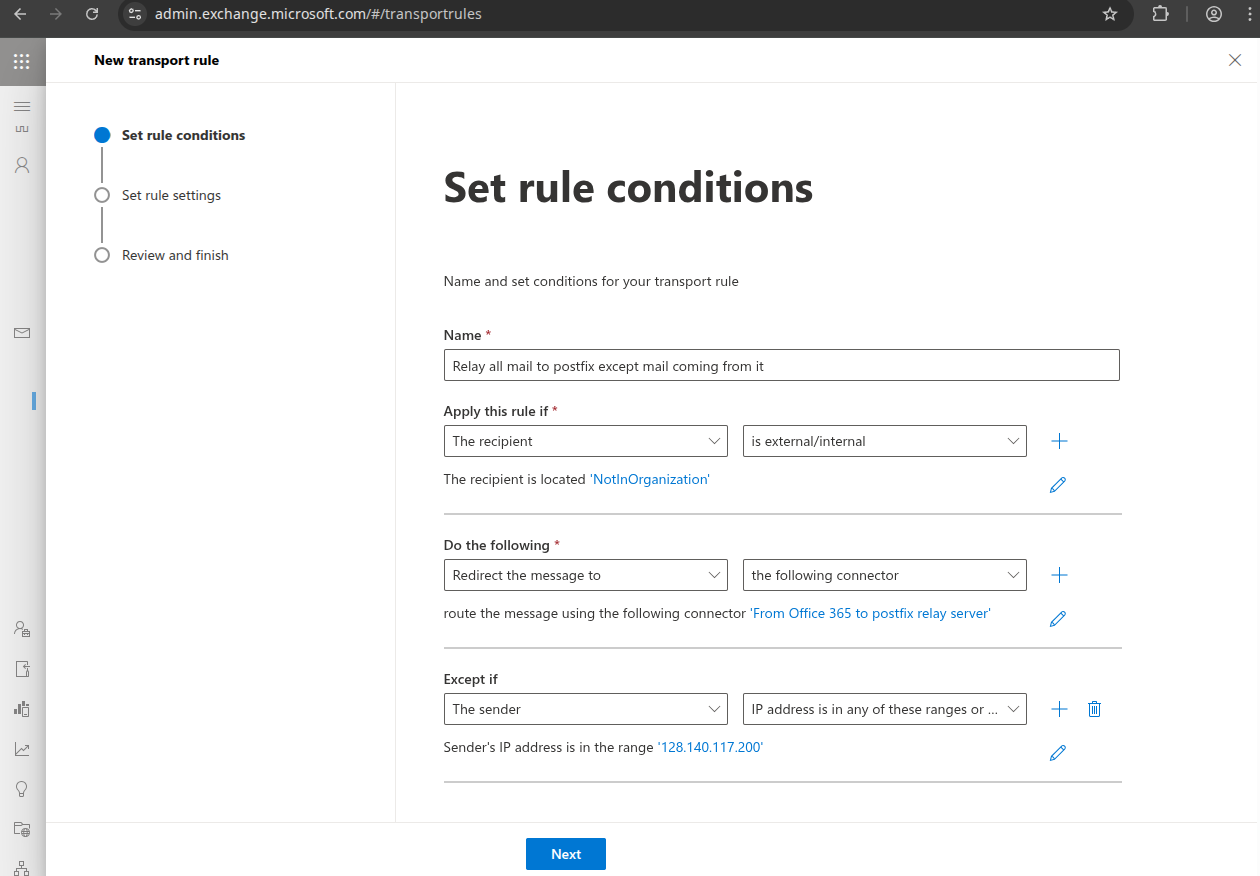
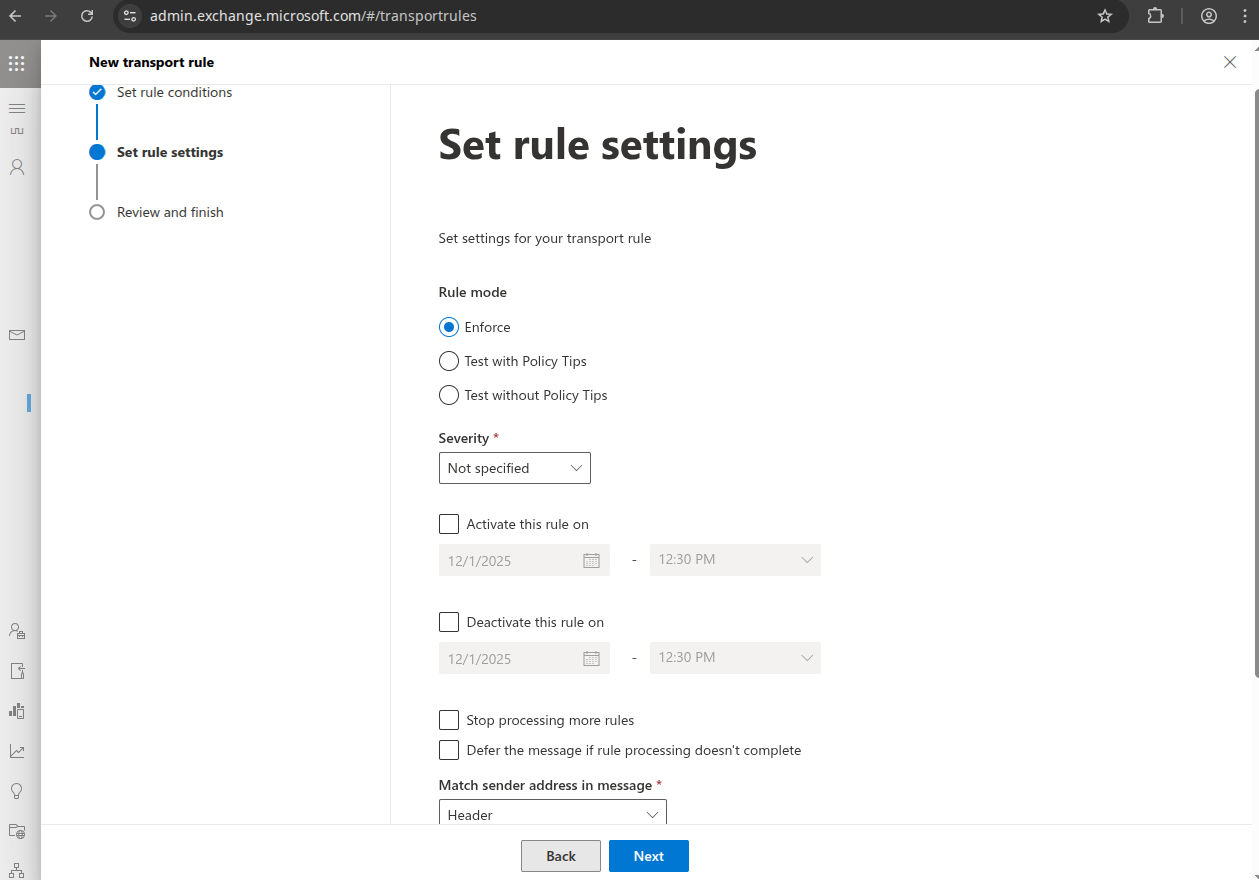
Click "Next".
Click "Finish".
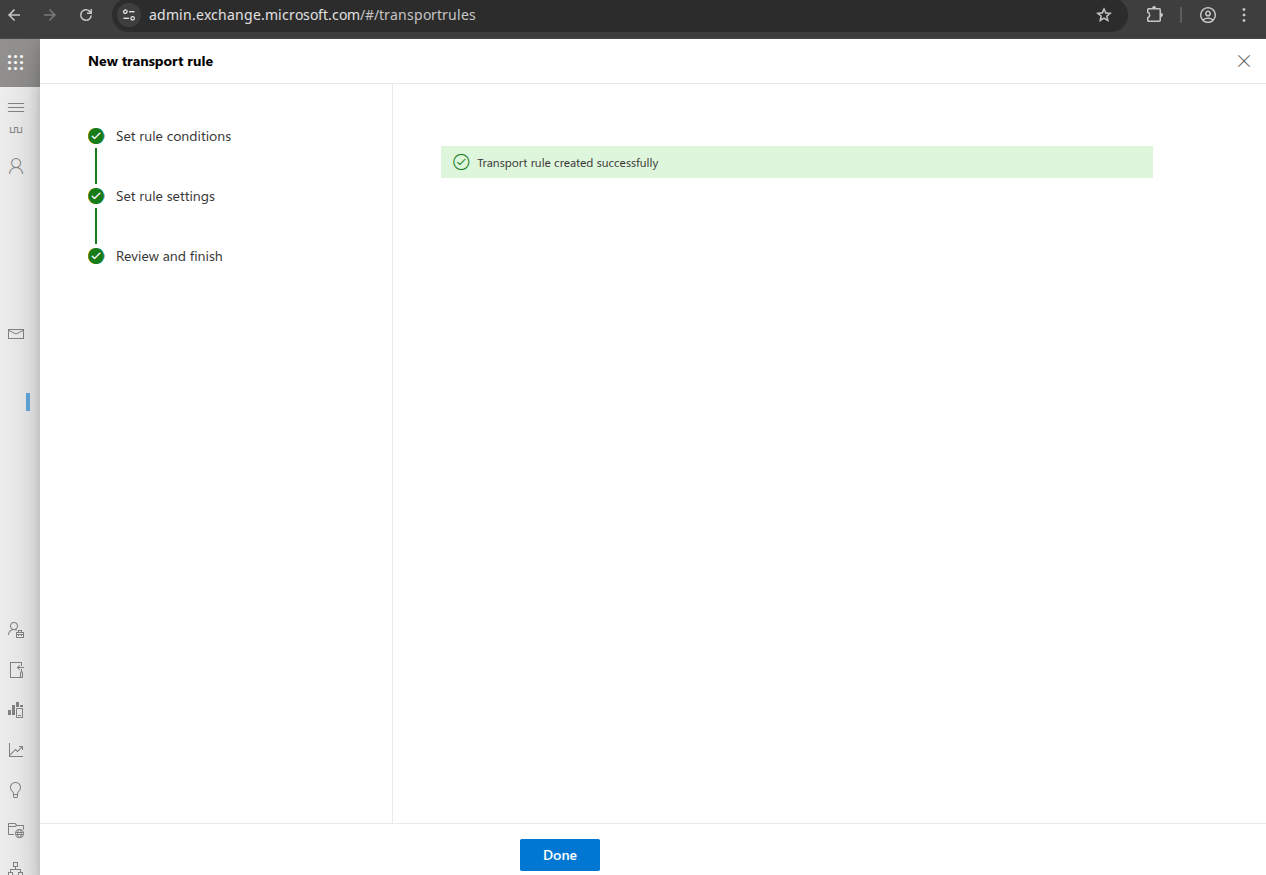
Click "Done".
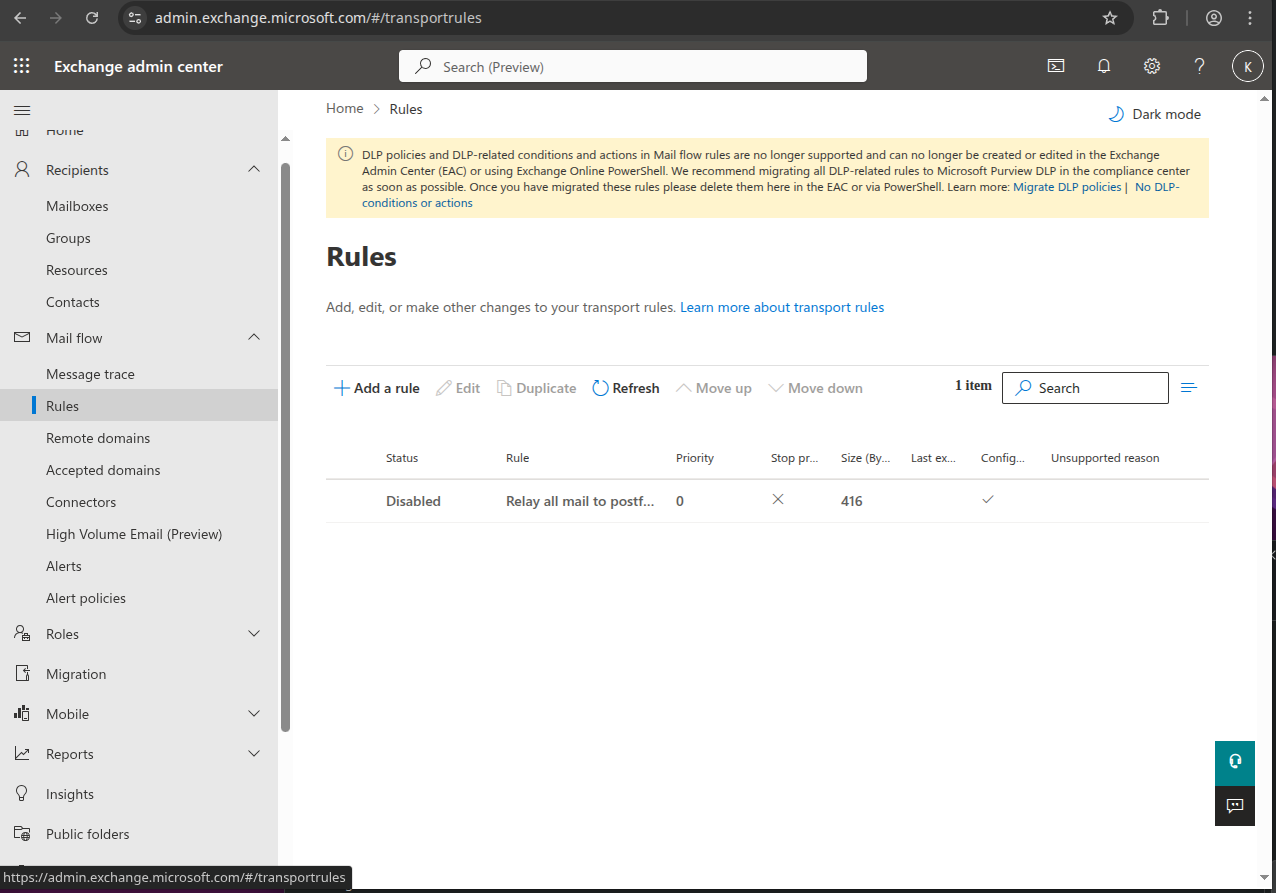
Click on the rule and set the "Enable or disable rule" to "Enabled"