Outbound connection authentication
When HIN Gateway forwards messages for a domain to the next hop (for example a mail relay or a mail server), that next hop may require the sender to log in before it accepts mail. Outbound connection authentication lets HIN Gateway authenticate to the next hop with a username and password (SMTP AUTH).
How it works:
- Each domain has its own Outbound relay (host and port) in the HIN Gateway dashboard
- When Require authentication is active, HIN Gateway logs in to the outbound relay with the credentials you enter before it forwards a message
Before you start
- You need access to the HIN Gateway dashboard
- The domain must already be added in HIN Gateway and onboarded
- Get the username and password from the administrator of the receiving side (the relay or mail server that requires authentication)
Configure the credentials
- Log in to the HIN Gateway dashboard.
- Go to Domains and select the domain.
-
Scroll down to Mail routing and find the Outbound section.
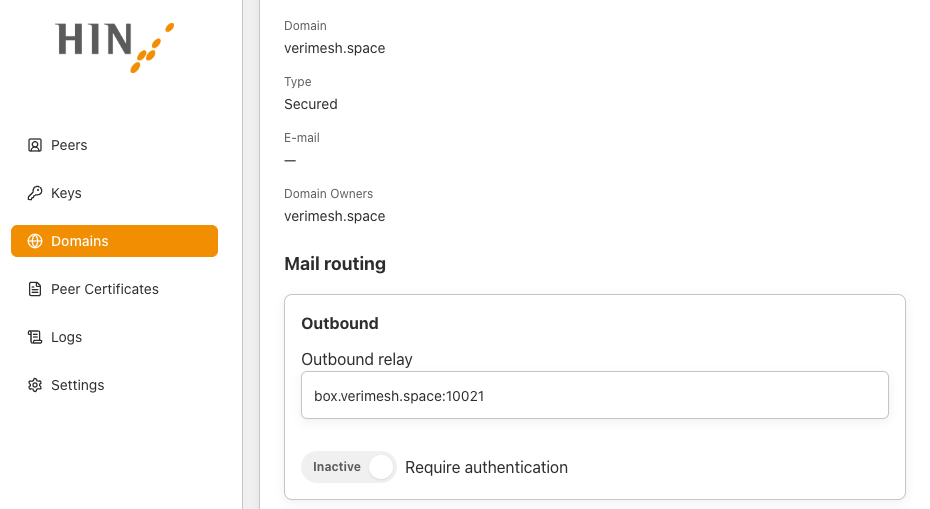
Check that Outbound relay shows the correct host and port of the next hop (for example
relay.example.com:25). These credentials are used for this relay only. -
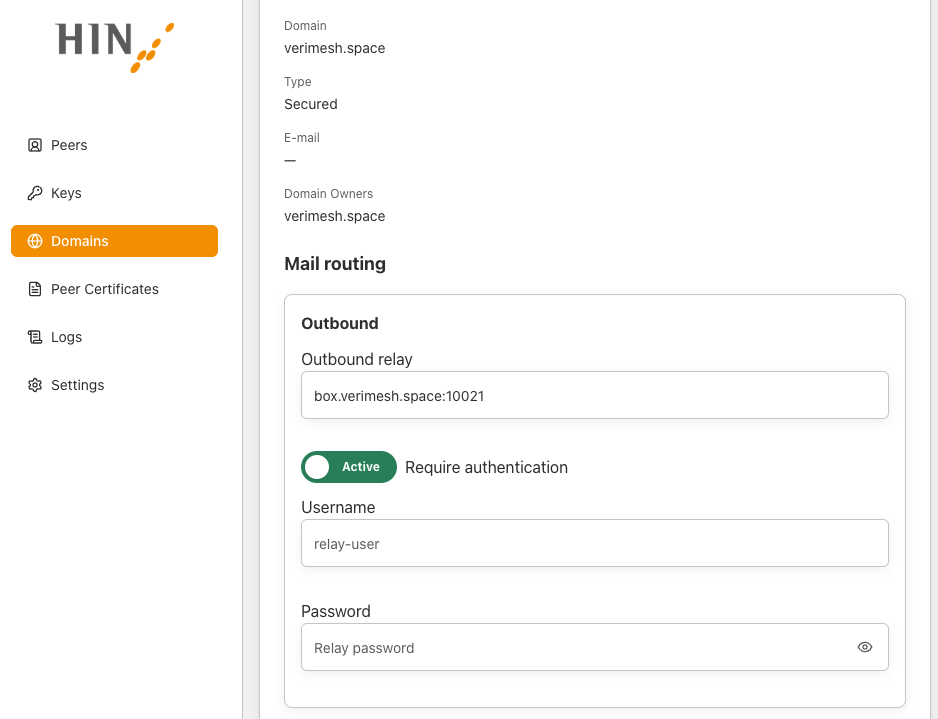
Click the Require authentication switch so that it shows Active. The Username and Password fields appear.
-
Enter the Username and Password configured on the receiving side. Click the eye icon to show the password and check it for typos.
- Scroll down and click Save.
From now on, HIN Gateway authenticates to the outbound relay every time it forwards a message for this domain.
Verify the configuration
Send a test message through HIN Gateway to a recipient behind the outbound relay and check that it arrives. If it does not, open Logs in the dashboard and look for authentication errors from the relay. The most common causes are:
- Wrong username or password
- The relay does not support or allow SMTP AUTH on the configured port
- The Outbound relay host or port is wrong
Change or remove the credentials
- Change the password: when the receiving side changes the password, enter the new one in the Password field and click Save. Until then, messages to the relay fail authentication.
- Turn authentication off: click Require authentication so that it shows Inactive and click Save. HIN Gateway then connects to the relay without logging in.