Inbound connection authentication
Inbound connection authentication allow an external system, such as a mail relay, an application or a mail client, send email for one of your domains through HIN Gateway by logging in with a username and password. This is useful when the sender cannot be allowed only by its IP address.
How it works:
- The sender connects to HIN Gateway on the submission port 587 and authenticates with SMTP AUTH
- Credentials are created per domain in the HIN Gateway dashboard
Before you start
- You need access to the HIN Gateway dashboard
- The domain you want to send from must already be added in HIN Gateway and onboarded
- TLS must be enabled for the domain. Passwords are only accepted over TLS, so credentials do not work without a TLS certificate
- Have access to the configuration of the sending system (MTA / application), since you will enter the new credentials there
Create a credential
- Log in to the HIN Gateway dashboard.
- Go to Domains and select the domain you want to send from
-
Scroll down to the SMTP authentication (port 587) section.
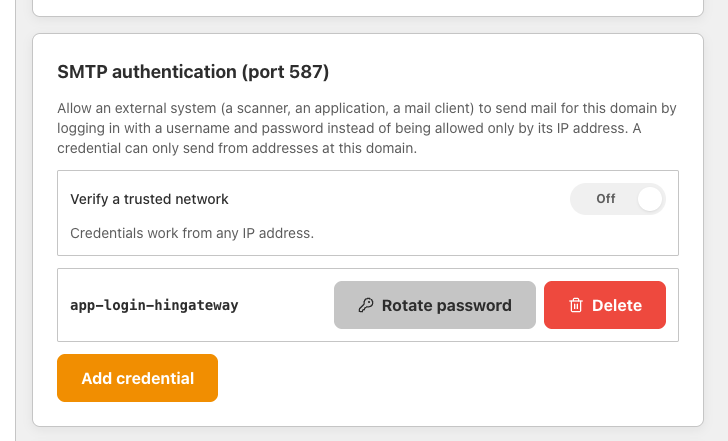
Any credentials that already exist for the domain are listed here.
TLS must be enabled
If the domain has no TLS certificate yet, the section shows the message No TLS certificate yet. Credentials do not work until TLS is enabled, because passwords are only accepted over TLS.
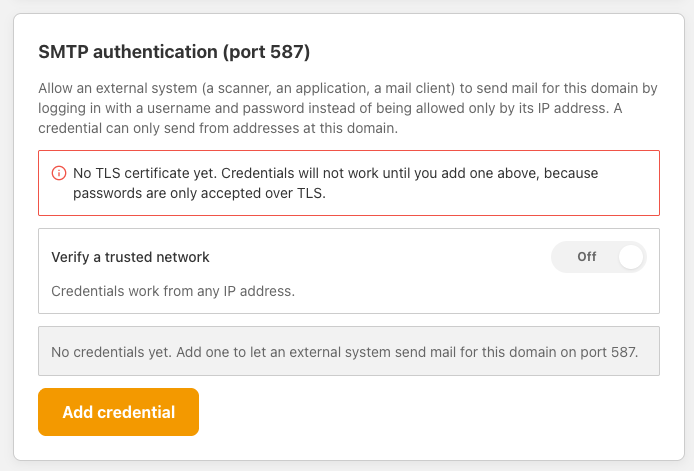
To enable TLS, go to the Configure TLS section of the same domain page and add a certificate, or click Generate TLS certificate to create one. Then return to this section.
The Verify a trusted network switch controls where credentials can be used from. When it is Off, credentials work from any IP address. Turn it on if you want to restrict logins to
Trusted networksonly. -
Click Add credential. A form with two fields opens:
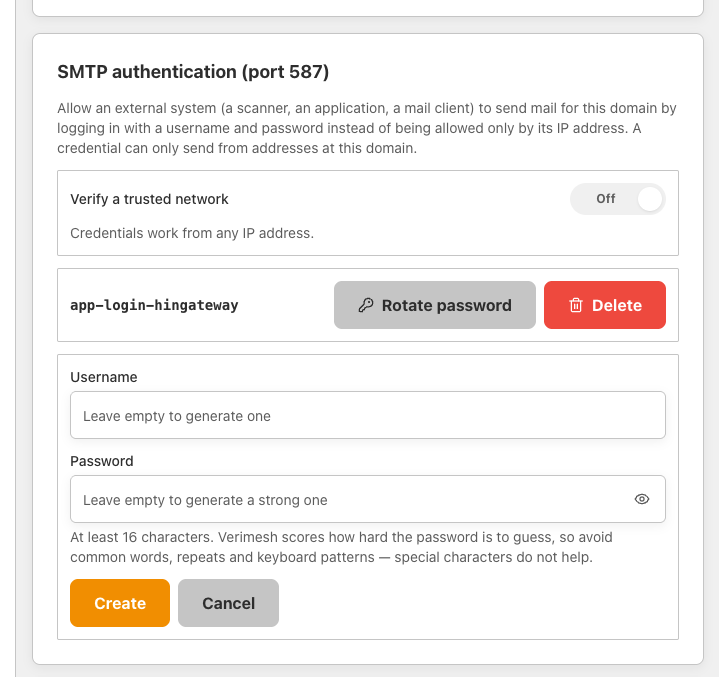
Choose one of the following:
- Generate the credentials automatically (recommended): leave both Username and Password empty. HIN Gateway generates a username and a strong random password
- Set your own credentials: enter Username and Password. The password must be at least 16 characters long.
-
Click Create
-
Copy the username and password
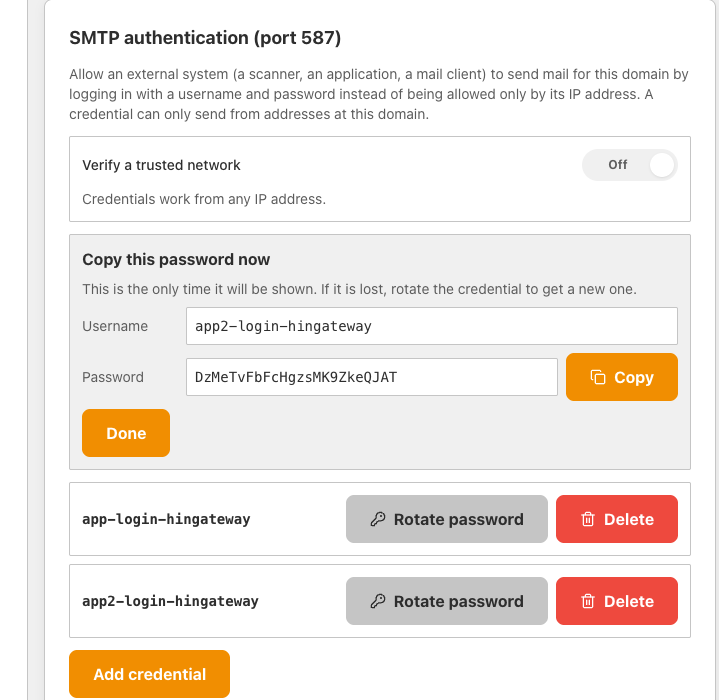
Warning
The password is shown only once. Click Copy and store it in a safe place (for example a password manager) before you continue. If the password is lost, use Rotate password to issue a new one.
-
Click Done. The new credential now appears in the list.
Configure the sending system
Enter the credential in the sending MTA, application:
| Setting | Value |
|---|---|
| SMTP server | The IP of your HIN Gateway |
| Port | 587 |
| Encryption | STARTTLS |
| Authentication | Username and password (SMTP AUTH) |
| Username | The username from step 6 |
| Password | The password from step 6 |
The sender address (MAIL FROM) must belong to the domain the credential was created for, otherwise the message is rejected.
Manage existing credentials
Each credential in the SMTP authentication (port 587) section has two actions:
- Rotate password: generates a new password for the credential. The old password stops working, so update the sending system right away.
- Delete: removes the credential. Any system that still uses it can no longer send through HIN Gateway.
!!! Tip Create a separate credential for each sending system. You can then rotate or revoke access for one system without affecting the others.