Configure NTP
HIN Gateway keeps its clock accurate with NTP (Network Time Protocol). An accurate clock is required: certificate validation, message signing and sign-in sessions all fail if the clock drifts.
How it works:
- By default, HIN Gateway synchronises its time with
ntp.metas.ch - If your network does not allow outbound NTP to the internet, or your organisation runs its own time servers, you can replace the default with one or more custom time servers
- You can add several time servers. If one is not reachable, HIN Gateway uses the next one
Before you start
- You need access to the HIN Gateway dashboard
- Get the hostname of the time server(s) from your network administrator
- Make sure HIN Gateway can reach the time server(s) on UDP port 123
Check the current time synchronisation
- Log in to the HIN Gateway dashboard.
-
Go to Settings and scroll down to the Time synchronisation section.
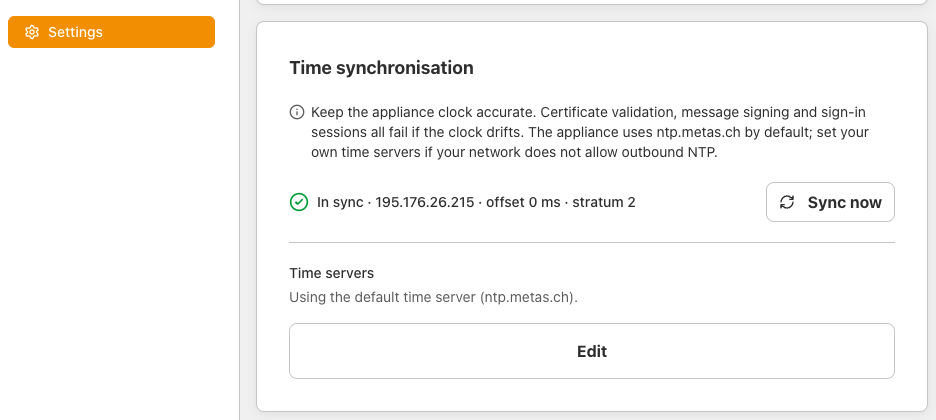
The status line shows whether the clock is In sync, together with the IP address of the time server in use, the offset and the stratum. Time servers shows which servers are configured. With no custom servers, it shows Using the default time server (ntp.metas.ch).
Add custom time servers
-
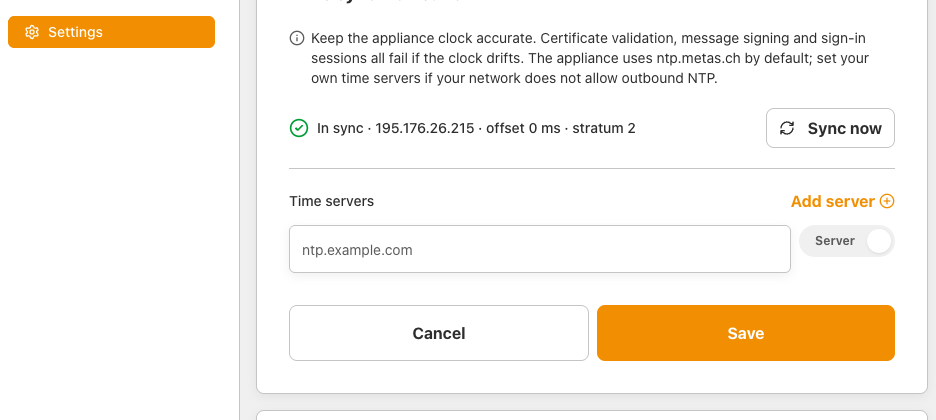
In the Time synchronisation section, click Edit. An empty field for the first time server appears.
-
Enter the hostname of the time server (for example
ntp.example.com). - Use the switch next to the field to choose the type of entry:
- Server: a single NTP server
- Pool: an NTP pool, a hostname that resolves to several servers (for example
ch.pool.ntp.org). HIN Gateway uses several servers from the pool
-
To add another time server, click Add server and repeat steps 2 and 3. You can mix pools and servers.
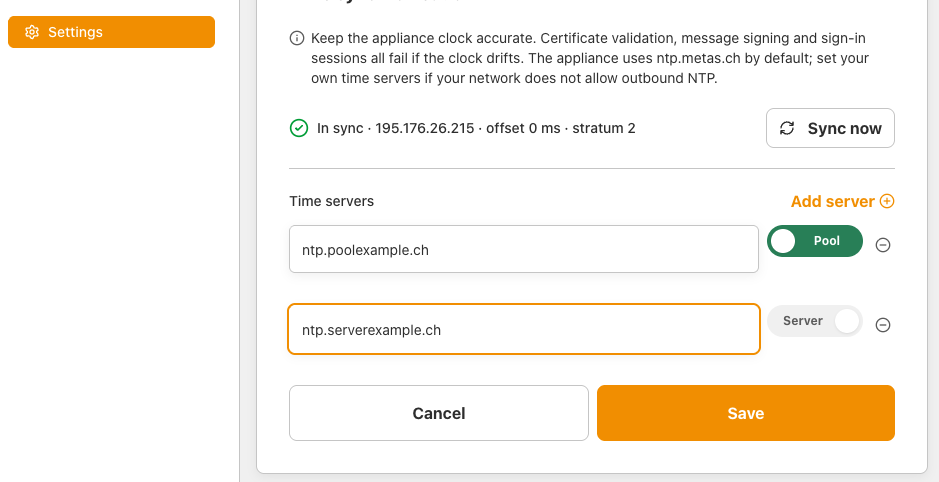
To remove an entry, click the minus icon next to it.
-
Click Save.
HIN Gateway now synchronises its time with the configured time servers instead of the default one.
Verify the configuration
Check the status line in the Time synchronisation section. It should show In sync and the IP address of one of your time servers. To force an immediate synchronisation, click Sync now.
Return to the default time server
Click Edit, remove all entries with the minus icon and click Save. HIN Gateway then uses ntp.metas.ch again.